Theo Brennan
Editor

If you want to automate video editing because the edit is eating your evenings, the tool you buy matters less than the habits around it. Record with pauses the software can cut on. Review the draft by ear before you check the picture. Decide in advance when a bad draft goes in the bin and you cut by hand. Those habits decide whether the automated pass saves you time or turns into a repair job.
I work at VidRush. If you want a finished long-form YouTube edit from a talking-head recording or a voiceover, that is the tool I'd point you to. If you want a faster timeline in Premiere, Resolve, CapCut or Descript that you finish yourself, a rough-cut app or your editor's own features fit better. Either way, the work runs in this order:
Log one edit so you know which stage eats your hours.
Pick the kind of automation that matches your footage.
Record the next video with clean pauses and full-sentence restarts.
Run the first pass on a duplicated sequence, never the original.
Review by ear first, and drop the draft if the first two minutes already need heavy repair (one editor's rule of thumb, not a law).
Note: How we researched this: we went through 18 Reddit threads in which someone described a specific bad result from automated silence, transcript or retake cutting on their own spoken-word footage, then 13 more where the complaint was the pacing left behind. We also sampled 15 YouTube demos of AI agents editing real footage and kept the 5 that actually showed revisions after the first draft. These are small, self-selected samples. They show what goes wrong, not how often it goes wrong for everyone.
Find out which part of your edit eats the hours
Log one edit before you buy anything. Edit time follows the number of decisions in the footage more than the length of the finished video, and which decisions dominate depends on the format. The slow stage on your channel may not be the slow stage on the channel whose tutorial you just watched.
The two-minute log
Use a sticky note or a text file. Timing apps that make you press start and stop break your concentration, and all you need is a timestamp at each handoff between stages. The whole log costs under two minutes per video.
Write five headings in order: rough cut (ingest and A-roll), B-roll and visuals, audio and music, captions and formatting, final review and export. Hearing the raw takes belongs under rough cut: a 10-minute talking head shot at a 3:1 to 5:1 ratio is 30 to 50 minutes of audio to audition.
When you move from one stage to the next, write the clock time next to the new heading. Write nothing in between.
Put anything you sat and waited for (renders, proxies, exports, uploads) in a separate waiting column, because none of it is hands-on work.
Put thumbnail, title and description work on its own line. Packaging is a separate job and can run one to two hours by itself.
Once the export is done, subtract to get hands-on minutes per stage and circle the biggest one.
The waiting column matters more than it looks. The render bar is the most visible part of an edit and usually the least important. People want to automate it because they stared at it, even though it cost them no decisions. Mixed into your editing total, a slow export looks like an editing problem.
The slow stage flips with the format
In a talking-head video, most decisions are about dialogue: which take, which sentence, where a pause ends. In a B-roll-heavy essay, most of them are about visuals, and dialogue cutting shrinks to a small share. The rough split for each format is in how long it takes to edit a YouTube video.
I learned the B-roll half of that the expensive way. On the history and engineering channel I cut for, and later on the aviation channel I ran, sourcing archival took more nights than writing or cutting. The nights went into finding footage. Placing it was the quick part.
Do the rough cut before you touch B-roll
The log only tells the truth if the stages really are separate. If you grade, add sound effects and lay B-roll while you are still deciding the story, every section you later cut takes that work with it. The editor behind @ShotbyReality shows this in his Resolve workflow. Switching to one job per pass is how he stopped throwing away hours of fine-tuning.
Ross keeps an 8-minute talking-head tutorial on his @DescriptMastery channel inside a hard two-hour timer. He does a messy rough cut first, uses saved scene layouts, and never hunts for B-roll during assembly. It is one creator's routine on one format, but the order is worth copying.
When the log is done, you should be able to finish this sentence: most of my hands-on time goes into ___. If the answer is cutting dialogue, software can draft a lot of that for you. If the answer is finding B-roll, a silence trimmer is the wrong purchase.
What software handles, what it half-does, and why the failures are usually heard
Hand software the jobs that have a checkable right answer, and keep the ones that need taste. On spoken-word footage, the split falls like this:
Captions and transcripts are dependable once you proofread them.
Silence, pause and filler-word removal give you a draft to review.
Automatic B-roll placement is also a draft to review: swap the clips that read the line too literally.
Best-take selection and pacing are yours to keep.

We expected picture problems and found sound
I went into this expecting the complaints to be about jump cuts: heads jerking between cuts, gestures chopped mid-move, tutorial makers losing the typing and clicking the tool mistook for silence. Then we went through the 18 threads where people described what automated silence, transcript or retake cutting did to their own spoken-word footage. The picture barely came up.
Main complaint in the thread | Threads (of 18) |
|---|---|
Pacing felt wrong (mostly too tight) | 5 |
Speech or laughter deleted as silence | 4 |
Clipped words or breaths | 4 |
Sync or technical fault | 2 |
Wrong take kept or good take removed | 1 |
Visual jump or pop at a cut | 1 |
Other | 1 |
The main complaint in each of the 18 Reddit threads we went through (January 2024 to November 2026). A small, self-selected sample, not a rate for all users.
Word-level damage to real footage was the main complaint in 8 of the 18 threads, and 10 mentioned it somewhere in the thread, counting the ones where it sat behind a bigger gripe. One described a visual problem at a cut. None said on-screen action had been removed. And 12 of the 18 caught the fault while watching playback. Their eyes were on the screen, but what stopped them was sound.
Hold that loosely. Eighteen threads from people annoyed enough to post is not a rate for everyone. Creators may accept a jump cut on a talking head as style and never post about it, so the visual count probably understates how often picture problems happen.
The sample can't compare methods either. Fifteen of the 18 involved transcript-based cutting and only 2 used a volume threshold, so I can't tell you which one fails less.
The one visual complaint came from an editor cutting corporate talking-head footage, where the cuts jarred whenever the head moved or the eyeline shifted. It matches what I saw in the commercial years: a client spots a jump in the CEO interview, while a YouTube audience has watched jump-cut talking heads for years. On your own channel, I'd fix the sound first and treat most jump cuts as style. On client work, cover them.
Why silence removal deletes laughter
The biggest surprise was in the label. In Premiere and Resolve, the features called silence removal cut by the transcript, not by volume. The software transcribes the audio, decides where the words are, and treats everything else as silence. Anything the transcription missed gets cut along with the real gaps: laughter, a "mhmm", a mumbled half-sentence, the soft tail of a word.
Those misses are what you hear on playback. In Premiere, one user watched the feature decide that "laughter and whole halves of sentences are Silence". In Resolve, another found it cutting off the very tail end of words. You won't spot either on the timeline, so the check has to be done with your ears.
Filler removal fails at the other edge. After a model change, a Descript user found it leaving "the first 1/10th of a second of every uh", which meant scrubbing the whole timeline anyway.
Pacing: the complaint a setting rarely fixes
Rhythm was the biggest single complaint in the table: tools deleting the whole pause and leaving no air between sentences, until the voice sounds robotic.
This doesn't surprise me, because I have never cut pauses to a number. The beat before a punchline needs more room than the breath after a comma, and one uniform rule can't tell them apart. One creator writing about Gling put it plainly: it "always ruins jokes, because it doesn't understand timing". Raising the padding setting is the obvious fix, and the section on running your first pass shows how rarely it worked.
Captions: dependable, with a proofread
Captions are the job I'd hand over first. On clean speech, current speech-to-text models get 2 to 4 percent of words wrong. On audio full of names and jargon, that climbs to 18 to 26 percent without a custom glossary, according to a 2026 arXiv paper on Whisper error rates.
Even the good case leaves work. One editor worked out the arithmetic on auto-captions. At 97 percent accuracy, a 10-minute talking head of about 1,500 words still has around 45 wrong words, clustered on names, numbers, product names and accents. That is a proofread rather than a re-edit, and the review section handles it in one muted pass.
Automatic B-roll needs your review, best takes stay with you
In Async's test of nine B-roll tools on a short script, the tools covered every line and matched "burning cash on ads" with footage of actual cash. That is one test on one 45-second script. Still, literal matches are exactly what to look for in review: whatever lays your B-roll, swap the cutaways that read the words instead of the meaning.
On the aviation channel, the right aircraft from the wrong decade read as a mistake to exactly the viewers I most wanted to keep. Whether software lays the B-roll footage for YouTube or you do, the final call on a period-sensitive cutaway is yours. Check those clips in review and swap the ones that are off.
Best-take selection is weaker still. Retake tools tend to keep the last complete version of a repeated line, and multicam switchers cut to whoever is loudest. Neither can hear which take had the energy. Editors on r/premiere describe switchers cutting to the listener instead of the person talking. Choosing the take is where your taste shows on screen, so keep that job yourself.
Choose the kind of automation that fits your footage
Decide what you want back before you pick a tool. A finished video and a faster timeline are different purchases, and most of the frustration I see comes from people buying one when they needed the other. Two questions settle it. Is the video long-form and spoken by one person, or is it Shorts, a multi-voice podcast or a screen tutorial? And when the software has finished, do you want to keep editing in Premiere, Resolve or CapCut, or do you want to be done?
Head-to-head scores live on the ranked AI video editors page. The table sorts the kinds of automation by what each one hands back and where it breaks.
Kind of tool | Best for | What you get back | Starting price | Where it fails |
|---|---|---|---|---|
VidRush | Long-form talking head (one English speaker) or voiceover-led video, 6 minutes and up | A finished 16:9 MP4 with dead air cut, B-roll, captions and music, editable in its own editor | $99/month, no free tier or trial | Shorts, gaming, multi-speaker podcasts, step-by-step software tutorials; no timeline XML |
Rough-cut apps (Gling, Descript, TimeBolt, Recut) | Talking head you want to finish in your own editor | A cleaned timeline (XML on some tiers) or a cut file | Gling free hour; paid tiers roughly $10 to $40/month; Recut $129 one-off | No B-roll or finishing; XML export is paywalled on some tiers |
Editor plugins (AutoCut) | Premiere or Resolve users who never want to leave the timeline | Cuts, and on the higher tier captions and zooms, on your own tracks | $9.90/month silence-only; 14-day trial | The cheap tier only removes silence; everything else is still yours |
Built-in features (Premiere, Resolve Studio, CapCut Pro) | People who already own the editor | Cuts made in place on your timeline | Premiere: in your plan; Resolve Studio $295 once; CapCut Pro $19.99/month | Resolve Free has no transcription; CapCut Free has no silence removal |
Clippers (Opus Clip) | Vertical Shorts cut from a finished long video | Short 9:16 clips with captions | Free tier is 9:16 and watermarked; $15/month to remove it | Not built to edit a long-form video |
Agent pipelines (Claude Code and similar) | Builders comfortable in a terminal, short templated pieces | A rendered file from the pipeline | An AI assistant subscription plus your setup time | Every fix is a prompt and a re-render |
Kinds of automation, matched to footage. Prices are from each vendor's own pricing page as of November 2026 and change often.
The last row is the advanced route. An agent pipeline turns every review note into a prompt and a re-render, so it gets its own section after the review method, once you know what a review pass involves.
If you want the whole edit done: VidRush
Sometimes the log doesn't point at one stage. Cutting, B-roll, captions and music each take a slice of the evening, and a faster silence trimmer shortens only one of them. When that is your log and the video is a long talking head or a voiceover, hand over the whole edit.
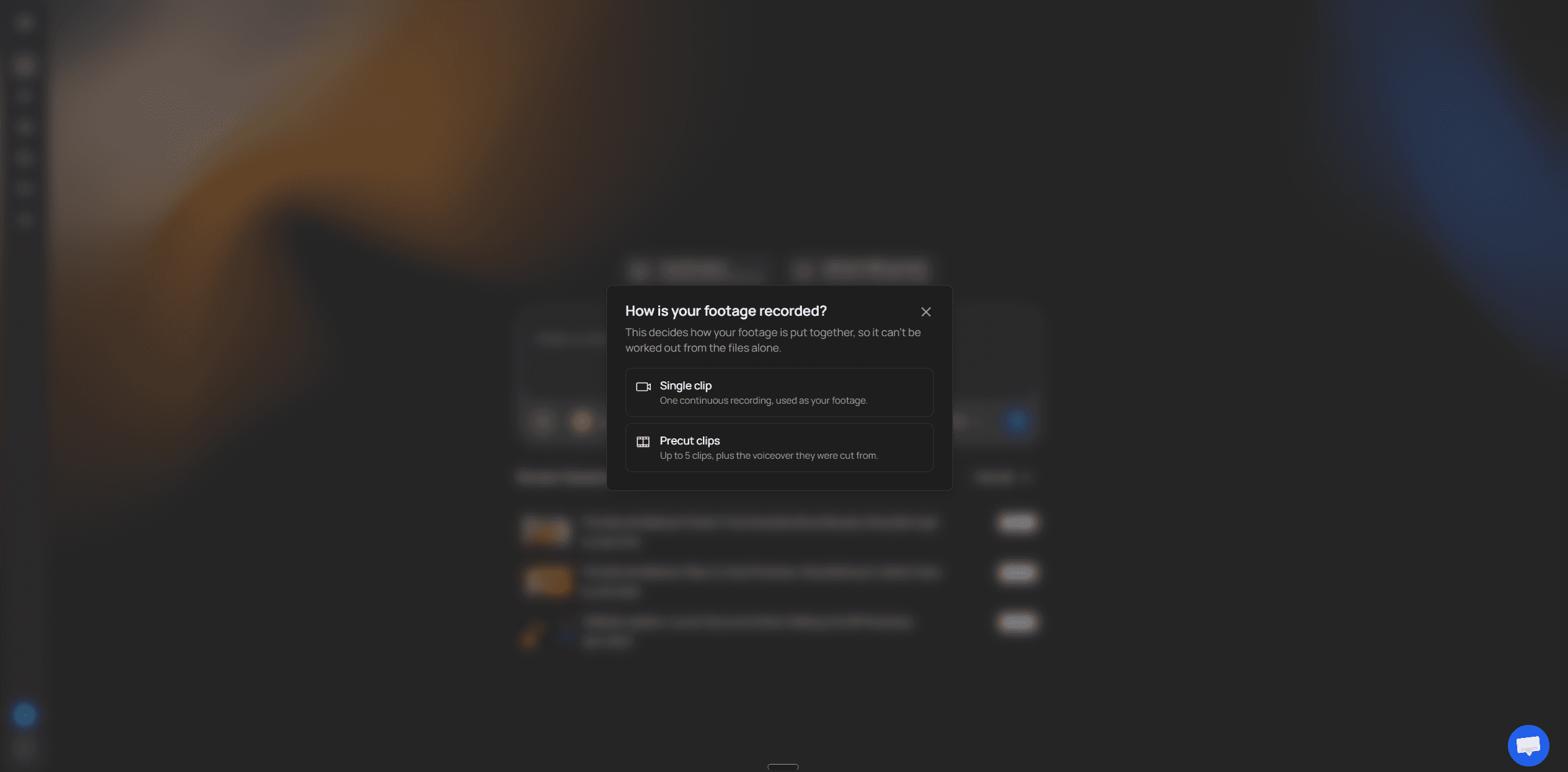
In VidRush you upload the raw recording through VidRush for talking-head videos. It asks how the footage was recorded. Single clip means one continuous recording. Precut clips means up to five clips plus the voiceover they were cut from. If your video is narration over visuals, you upload the voiceover as an MP3 or WAV instead. Talking-head uploads start at 6 minutes.
What comes back is a widescreen edit. The dead air and filler are cut, licensed stock B-roll is laid over the talking head, and captions, motion graphics and music are added. The finished video runs about 90 percent of the length of your recording. It processes in a cloud queue, which takes tens of minutes rather than seconds, so you can close the browser and come back.
Then you do a finishing pass in the built-in editor: swap a clip that reads too literally, retime a cutaway, fix a caption, replace a stretch of audio, and render. A re-render costs about a tenth of the original credits, so small fixes don't cost you the whole video again.
Listen to it before you look at it, as with any automated cut, and treat what comes back as a draft with a finishing pass still to do. The practical test is your own footage: upload your next long talking-head recording or voiceover and run the review passes from this page on the edit it returns.
Plans start at $99 a month, and the VidRush pricing page lists the credits and finished minutes each plan includes. There is no free tier and no trial.
The fair comparison for that $99 is what the edit costs you now: the evenings on B-roll and finishing, or the per-video fee for hiring an editor. A cheaper app that only trims silence leaves both of those on your desk.
It is built for long-form, widescreen, English talking heads and voiceovers, and it returns a finished MP4 instead of a timeline XML. If you enjoy the edit and only want the cuts faster, a rough-cut app below fits better.
If you want a faster timeline: a rough-cut app
Gling, Descript, TimeBolt and Recut all do the same core job. They find the dead air, the filler words and the repeated takes, cut them, and give you something to finish in your editor.
What decides between them is whether your tier exports a timeline XML. With XML, the cut opens in Premiere or Resolve as real clips you can trim. Without it, you get a flattened file, and every bad cut means going back to the raw footage.
Gling exports XML on every tier, including a free hour a month with watermarked video. Plus is $20 a month ($10 billed annually) for 10 hours, per Gling's pricing page.
Descript keeps XML export for Creator, at $35 a month or $24 billed annually. Free and the $24 Hobbyist plan don't include it, and free exports are 720p with a watermark, per Descript's pricing page.
TimeBolt costs $17 a month, $97 a year or $347 for a lifetime licence.
Recut is $129 once or $15 a month, with three free trial exports.

If you finish in Premiere or Resolve, a plan without XML is a trap. You save twenty minutes on the cut and lose them rebuilding the timeline. If you already pay for Descript and wonder whether something else fits a talking-head channel better, the Descript alternatives page goes through that comparison in detail.
If you'd rather not leave your editor: plugins and built-in features
A plugin runs as a panel inside the editor you already use, so nothing goes out and comes back. AutoCut works in Premiere and Resolve.
Its Basic tier at $9.90 a month only removes silence. The AI tier at $19.80 a month adds captions, speech-synced zooms, repeated-take removal, multicam switching and chapters, according to AutoCut's pricing page. The 14-day trial needs no card, which is enough to run one real video through it.
Your editor may already do part of this, but check which version you have. Premiere's text-based editing is part of the plan you pay for. In Resolve, transcription and text-based editing need Studio, a one-time $295 licence. Blackmagic's Studio comparison shows the free version has no speech-to-text at all. CapCut puts automatic silence and filler removal behind Pro, at $19.99 a month or $179.99 a year, per CapCut's pricing page. These built-in silence tools cut by transcript, with the failure modes covered earlier.
You can do this without adding another monthly subscription:
Premiere's text-based editing, already in your plan.
Resolve Studio, $295 once, if you edit in Resolve Free today.
Recut at $129 or TimeBolt's $347 lifetime licence, paid once.
Gling's free hour a month, which still exports XML to your editor.
For a first test I'd use whatever your editor already has, or Gling's free hour. Don't buy a year of anything before one of your own videos has been through it. CapCut Pro only makes sense if CapCut is already where you edit, because the subscription buys the tools, not a better timeline.
If what you want is Shorts
A clipper takes a finished long video and cuts vertical clips from it, which is a different job from editing the long video in the first place. If clips are your real goal, long-form edits vs short clips sets out which tool does which job.

Record so the software can find clean cut points
Whichever tool you picked, give it a boundary it cannot miss. When you flub a line, stop. Hold still and silent for two to three seconds, then start the whole sentence again. That one habit decides whether the first pass hands you a draft or a repair job.
The repair job is the real risk. One Descript user who trusted the automatic cleanup said they spent more time fixing its butchery than a manual edit would have taken. That is one person's bad week, not a rate. It is also the exact outcome this page is trying to keep you away from, and the cheapest place to prevent it is the shoot.
What to do the moment you flub
Stop talking as soon as you hear the mistake. Don't push through to the end of the sentence.
Hold still and silent for two to three seconds. Keep your face neutral and your body where it was.
Restart from the beginning of the sentence, or the whole thought if the sentence depends on the one before it.
Skip the verbal patch. "Sorry, what I meant was" is a fragment the software has to guess around.
The silence is the part that does the work. If you restart straight away, the tool can read the flub and the retake as one continuous phrase and keep both, or cut somewhere in the middle of them. CutFast's routine asks for one to two seconds of it. I'd go with two to three, and Wideframe's prep guide ranks the pause as "the single most impactful recording habit" for AI-assisted editing.
My reason for the longer gap is that it should be longer than any pause you actually want in the video. A dramatic beat or a thinking pause runs maybe a second. If your retake gaps are clearly longer than that, both the software and you, scrubbing later, can tell a gap that means "cut here" from a gap that means "let this land". That is my reasoning, not something we measured, but it costs you nothing to try.
Keep rolling, and keep still
Leave the camera recording through mistakes. One long file means no clips to sync and no gaps between files for the tool to misread.
Keep the same distance from the mic. If you lean in on one take and sit back on the next, the levels jump at every cut and the transcription gets worse on the quiet takes.
Hold your framing. Same seat, same lean, so a cut between takes reads as a cut and not as a person who has moved.
Add a clap before a retake if you like. It puts a spike in the waveform you can spot when scrubbing, but it is optional.
On the clap, I come from edit bays where every take had a slate, so I like it. For a solo talking head I'd only use it if you scan the waveform by eye. The two to three seconds of silence does the real work for the software. A clap you forget half the time just adds one more thing to remember when you are already annoyed at yourself for fluffing the line.
Run your first automated pass on one recording
Run it on a copy, test a short slice, treat the vendor's settings as a starting point, and expect to fix cuts afterwards. None of this is specific to one app. Premiere, Resolve, Descript and the rough-cut apps all reward the same caution, and the button-by-button steps live in each tool's own docs.
Set up so nothing else breaks
Duplicate the sequence and give the copy an obvious name, something like Episode12_AutoCut_Test. The original stays untouched.
Turn on linked selection so the camera's video and audio cut together.
Check your sync locks. Lock tracks that should move with the dialogue, and unlock anything that has to stay at a fixed time.
Pick a 30 to 60 second slice with normal speech, a quiet word or two and some breaths, plus a laugh if you have one.
Run the tool on that slice only, listen to it, then decide whether to run the full timeline.
Step three is the one people skip. An automated ripple delete shortens the dialogue track, and anything not locked to it, such as music, graphics, subtitles or B-roll, drifts out of place. The DaVinci Resolve Club guide to Ripple Delete Silence sets out this order. The simplest protection is the one-job-per-pass habit from the logging section: if nothing sits above the dialogue yet, nothing can drift.
If you record software tutorials, put a stretch of typing, clicking or a loading screen in that test slice. Only one of our 18 threads was clearly a screencast, and its problem was something else, so I can't tell you whether silence removal eats those stretches. The test slice will tell you in a minute.
The settings worth touching, by tool
Every tool has a dial for how quiet counts as silence, a dial for how short a pause it will ignore, and a way to leave room around each cut. The names differ. The values below are the vendors' starting points, and your testing begins with them.
Tool | Controls to find | Starting point given |
|---|---|---|
TimeBolt | Volume threshold, minimum silence duration, left and right padding | Threshold -30 to -42 dB (default -35 dB); minimum silence 0.5 s or more; left padding 0.01 s; right padding at least 0.15 s |
DaVinci Resolve (Ripple Delete Silence) | Threshold, Pre Head and Post Tail frame buffers, Minimum to Trip, crossfade audio | Set the threshold between room tone and your quietest syllable; buffers protect word starts and endings |
Premiere Pro (text-based editing) | Minimum Pause Length under Transcript View Options; no padding handles | Default 0.75 s, which can go down to 0.2 to 0.3 s; editors often leave pauses above 0.5 s alone |
Descript | Avoid harsh cuts; Shorten word gaps | Shorten gaps to a target length (for example 200 to 300 ms) rather than deleting them |
Starting points from each tool's documentation or a published guide (TimeBolt docs, DaVinci Resolve Club, John the Video Guy for Premiere, Descript help). Test every value on your slice.
Look at TimeBolt's padding. It barely leaves anything before a word and leaves more after it. Speech starts sharply and ends softly. The S, the P and the breath at the end of a phrase trail off quietly, and a tool cutting on volume will treat that tail as silence. TimeBolt's silence detection docs set the right side longer for exactly that reason.

Premiere is the awkward one, because it has no padding control: it cuts at the transcript's word boundaries, according to John the Video Guy's guide to deleting pauses. You get room around a word by trimming afterwards or by leaving longer pauses untouched.
In Descript, turn on Avoid harsh cuts and shorten gaps instead of deleting them, because Descript's own help page puts the clipped syllables down to deleting everything. Treat that as a starting point, then listen to the result before you trust it.
Why the padding number won't save the rhythm
Raising the padding is the obvious fix for tight pacing, and in the 13 pacing threads we went through it rarely worked: in 8 of them the person ended up fixing gaps by hand or giving up on automated gap removal. Keep the limits in mind. Thirteen threads, mostly podcasts and one talking head, posted by people unhappy enough to write about it.
I expected the threads to settle on a number, something like a tenth to three tenths of a second of padding you could type in before the run and forget. Five people who changed a setting still called the result unnatural. One swapped too tight for draggy. One was fixed and one improved to acceptable. Four never tried a setting at all.
The two values that worked don't even agree on direction. Only four threads gave a number, and the two people who said theirs worked both counted in frames. A Resolve user adds a buffer of 2 to 5 frames to each cut. A Premiere editor trims 3 to 5 frames off the start of every cut afterwards. Neither gave a frame rate, so you can't turn either one into seconds and type it into your own tool.
The complaints didn't point one way either. Five said the cut came out too tight. Two said the tool left too much dead air, which more padding only makes worse. One voiceover user wanted comma pauses and full-stop pauses shortened by different amounts, and no single dial does that.
So set it loose, because the two mistakes don't cost the same to fix. A gap that runs long is one ripple trim in review. A word with its ending shaved means reopening the handle and hunting for the frame where the sound actually stops, then doing it again on the next cut. One user cutting hours of voiceover called adding frames back across hundreds of cuts a terrible workaround.
Warning: Re-run your test slice after every update. In January 2026 a Premiere user complained that pause deletion removed the whole pause. By April, after updating to version 26, another Premiere user had about 0.3 seconds of forced padding around every cut that no pause setting removed, and was thinking about rolling back. Three of our 13 threads tied a pacing change to an update. Keep the slice, and listen to it again before you trust a new version with a real video.
Covering the jump cuts you decide to cover
Where a jump cut needs hiding, use a hard cut with a slight punch-in, around 10 to 15 percent, and skip the morph transition. The DaVinci Resolve Club teardown found that Resolve's Smooth Cut warps the face whenever the speaker moves their head or gestures. A visible cut looks like editing. A melting face looks like a mistake, and people notice it far more than a jump.
What a good draft still leaves you
Even a working tool leaves fixes, and the fixes are where your time goes. BlitzCut, which makes one of the three tools it compared, ran Recut, TimeBolt and its own tool on a 15-minute talking head. Each produced a cut in 1.5 to 3.5 minutes, and each still left 5 to 8 cuts needing correction: 1 to 3 that clipped speech and 4 to 5 missed pauses.
The aim of this first pass is a draft on a copy and a setting you have actually heard; whether the routine saves time is a question for your third video.
Check the cut by ear first, and know when to throw it away
Decide whether the draft is worth fixing before you fix anything. Play the first two minutes at 1.5x with headphones and count every edit point you'd have to zoom into, either to restore a clipped word or to delete a leftover stub of a pause. If you reach more than three or four, stop, go back to your untouched sequence and cut it by hand. Past that point, every minute spent repairing usually costs more than the tool saved you.
The rule comes from Daniel Pearson's hybrid editing workflow at Wideframe. It is one editor's rule of thumb, not a law, and the exact count matters less than having one before you press play.
Why two minutes is a fair sample
The first two minutes stand in for the whole draft: same voice, same room, same settings. If the cuts are bad here, they are bad at minute nine too, and you'll be more tired when you find them. Without a stop rule, people keep going because they have already put an hour into the draft, which is the worst reason to keep editing anything.
Why repairing loses to cutting fresh
The arithmetic is lopsided. In my experience, a clean cut made while the footage plays forward takes two to four seconds: you park on the frame and hit a ripple-trim shortcut. Repairing a bad cut takes fifteen to thirty seconds every time, because you have to zoom in, find where the sound really ends, drag the handle and listen again.
A made-up example shows the gap. Picture a 10-minute video with 80 automated cuts, a quarter of them wrong. At the repair rate above, those 20 fixes come to five to ten minutes of fiddling with handles, and you only know which 20 they are after listening to all 80. A fresh pass forward with the transcript open costs about the same and leaves no half-fixed cuts behind.
When a draft fails, keep the part that worked. Leave the generated transcript open beside the timeline so you can search it and jump around. Then cut the A-roll yourself: J-K-L to shuttle forward, Q and W to ripple-trim to the playhead. The software still handled the transcription, and you make the decisions it got wrong.
Review in passes, one kind of fault at a time
If the draft passes the test, review it in separate passes, each looking for one kind of fault. Mixing them is what turns review into a second edit. The order below combines two published methods, Sycamore's multi-pass review and JML Tech Studios' keyboard-first trimming, with a check of the removed audio added in the middle.
Step | What you do | What it catches | Rough time, 10-minute video |
|---|---|---|---|
1. Two-minute test | Listen to the first two minutes at 1.5x and count the cuts that need repair | Whether the draft is worth keeping. More than three or four bad cuts means stop and cut by hand | 3 min |
2. Transcript skim | Read the transcript without playing anything | Duplicate takes, a missing sentence, a thought out of order | 2 to 3 min |
3. Listening pass at 1.5x | Headphones on, eyes on the waveform, Up and Down arrows between cuts, Q and W to trim | Clipped word endings, pause stubs, gaps too tight or too long | 10 to 20 min listening, 10 to 15 min rhythm trims |
4. Removed-audio check | Play only what the tool cut out | Laughter, a quiet word, a deliberate pause the tool deleted | 1 to 2 min |
5. Muted caption pass | Sound off, read the captions at 2x, search for every name and number | Misheard names, wrong numbers, mangled product names | 10 to 15 min |
Review by ear first, then by eye. Times are rough budgets for a 10-minute talking head, taken from Sycamore's and JML Tech Studios' published workflows and TimeBolt's silence preview.
The transcript skim comes before any listening because reading is faster than speech. Sycamore's point is that you read far faster than anyone talks, so ten minutes of dialogue takes two or three minutes to skim. At this stage you check the story only: did a whole thought vanish, did the tool keep the flubbed take instead of the clean one.
Listen with your eyes on the waveform, not the face
People in our threads were watching playback when the fault caught them, and what caught them was sound. So for the listening pass, take your eyes off the speaker and keep them on the audio waveform at each cut. A face pulls your attention away from the join, while the waveform shows you a cut that lands in the middle of a word. Wear headphones: a clipped S or a shaved breath disappears on laptop speakers, and that is exactly the damage you are listening for.
This pass is also where the rhythm gets fixed, because no setting did it for you. Give back the beat before a punchline, the gap after a full stop, the laugh that made the moment, and trim any gap that drags. Do it from the keyboard with the playhead parked, not by dragging handles with the mouse.
The quickest check is the one most people skip: listen to what the tool threw away. TimeBolt can preview the silences it removed, and @TheFinalCutBro shows it as a safety check. You play only the deleted gaps and hear within a minute or two whether a laugh or a sentence went with them. Not every tool has this. If yours doesn't, keep the original sequence open and check any removed gap where the waveform shows sound.
Proof the captions last, with the sound muted. If you hear a word while reading it, your brain fixes the spelling for you, and with the sound off a misheard name stands out. Search the transcript for every name, number and product before you call the video done.
What the review costs
Budget 30 to 50 minutes of review for a 10-minute talking head. That is the split one studio, JML Tech Studios, reports for its own workflow: 10 to 20 minutes listening through the cuts at 1.5x, 10 to 15 on rhythm trims and 10 to 15 proofing captions. Wideframe's benchmark for AI-assembled corporate packages lands close to it, at 10 to 15 minutes to review a 5-minute assembly.
Don't try to beat that budget with one watch-through at normal speed. A single pass mixes every kind of fault, and the quiet ones slip past while you are reading captions. If your review keeps running past 50 minutes on a 10-minute video, look upstream at the recording or the settings before you blame the review.
Letting Claude Code or an AI agent edit: what happens after the first draft
An agent can cut your video, but every note from the review you just learned turns into a prompt and a re-render. You type a note, wait, watch, and type the next one. The loop runs longer than the demos make it look, and it needs real setup before the first cut. It does work, though, and for one kind of job I think it earns its place.
What the demos show, and what they leave out
Most agent-editing videos never show the revision loop. Of the 15 we sampled, only 5 showed any follow-up instruction after the first draft. Several others only described what the creator "would say". In the 5 that did, the typical demo showed about two revision prompts carrying about five separate asks: a couple of ordinary timeline tweaks, roughly one re-cut, and at least one request to generate something new.
I expected the loop to be mostly small polish, with a natural point where you export to your editor and finish there. Nobody exported. All five finished inside the pipeline, and 4 of the 5 showed or mentioned waiting for a re-render between rounds. Treat that loosely. Five is too few to say how much of the work is polish. All five were talking heads, four were coding-agent setups, and three showed some rounds and summarised the rest. Creators choose which rounds make the video.
The loop is longer than the video
Jason Cooperson's Claude Code demo shows one revision prompt, yet he says the 47-second intro took about two hours of back-and-forth. The rough cut wasn't the problem. He accepted it untouched. The time went into graphics. The first pass put text over his forehead, and fixing it took notes like "move it to the bottom, make it a little bit smaller", each followed by a partial re-render of three to four minutes. Those are jobs you'd do in seconds with a mouse.
Matt Wolfe's walkthrough shows the whole loop. One feedback message, mixing an audio fix with tightening gaps and cutting flubs, meant a 36-minute wait for the revised render. His pipeline did cut pauses, pull B-roll and animate titles on a short. He still concluded that long-form warrants traditional editing software.

This is why small tweaks get expensive. When the agent builds a graphic as code, a resize is still conceptually a one-step job. The only way to do it is to describe it in words and wait for the render. In a timeline, you grab the thing and move it.
What it takes before the first cut
The demos start at the fun part. Wolfe's walkthrough shows the setup underneath:
Runtimes installed from a terminal: Node.js or Python, FFmpeg, a transcription model.
API keys and connectors for outside services; Wolfe added audio and research connectors.
Folder write permissions granted, and blocked domains overridden in the assistant's settings.
Custom Python scripts, which he had Claude write when the default tools failed to transcribe.
When something breaks, you get an error in a terminal, not a warning on a timeline. If that sentence made you wince, you have your answer already.
Hand it the graphics, keep the cut
All five demos asked the pipeline to make something new after the draft. Ali Abdaal cut his A-roll by hand in Resolve and gave the agent only the motion graphics, calling "human plus AI" the sweet spot. That is the half I'd trust an agent with first, because generating a lower third or an animated chart from a description is something it does well. The takes I'd keep for myself, for the reasons in the best-takes part earlier.
Two hours of prompting on a 47-second intro sounds expensive to me. In the ad years, a note that came back twice on the same element was the point where someone stopped describing it and just moved it. Use the same rule with an agent: on the second note about the same graphic, stop prompting and fix it where you can touch it, or accept it.
Build one if you're at home in a terminal, make short pieces on a repeating template, and your log says graphics are the slow stage.
Skip it if your videos are long talking heads and your log says cutting or B-roll is the slow stage. One of the tool types in the earlier table does that with less setup.
Don't dismiss it as hype. Wolfe's pipeline did real editing on shorts. Just budget a full render for every round of notes.
Make it a routine, measure the saving, pick the next task
Run the same routine on three videos before you judge it, and log each one against your first log.
Expect the saving by the third video
On the first run, the time goes into calibrating thresholds, building a template and fixing aggressive cuts, so the net saving is often close to nothing. By the third video or so, your recording habits have settled, you know the settings and the template exists. That pattern comes from creators' own before-and-after accounts, such as Matt Johnson's AutoCut walkthrough, not from a controlled test. Treat three as a rough marker.
Johnson's demo is worth watching for where his saving came from. A talking-head edit that took him 2 hours by hand took 30 minutes with AutoCut inside Premiere. The biggest single saving, 29 minutes on a 1-hour recording, came from automatically culling repeated takes. Silence removal saved less.

Johnson is one creator on his own footage, and your number will be different. Still, if your log shows lots of retakes, it is a good reason to test retake detection before you spend a month tuning silence settings. On the history channel I cut for, the retakes were the long part of any talking-head segment. The silences between them were cheap to cut by comparison.
Re-log against your first log
Use the same five headings and the same waiting column as your first log, and compare stage by stage as well as the total. A total that drops while the review stage grows means the tool moved work around and removed less of it than it looked.
Write the tool's version number at the top of each log. When a stage suddenly slows and the version changed, re-run your test slice before you blame yourself, for the reason in the update warning above. If the rough-cut stage hasn't shrunk by the third log, drop the tool. Three honest tries is enough.
Keep the finishing in a master template
Do the cutting in the automation tool, and keep everything that repeats in your editor. A timeline XML carries cuts, clip order, source timecode and markers. According to Descript's timeline export documentation, titles, transitions, video and audio effects, images and animation don't survive, and captions don't export to Premiere at all. Anything you style before the handoff, you style twice.
So build one master project and duplicate it for every video, as Wideframe's guide to edit prep describes. Then drop the imported rough cut into the copy:
Your voice chain loaded on the dialogue track header, not on individual clips.
Your grade or LUT on an adjustment layer.
Lower thirds, logo and end card saved as templates.
Your caption style saved, so the muted proof is the only caption work left.
Every post house I worked in had a house template for this reason. Nobody should be rebuilding an audio chain at eleven at night for a video that looks like the last twenty.
Proof one video before you batch
Once the template works, batching is tempting: queue a month of recordings and let them transcribe overnight. Do it only after one video made with those exact settings has been proofed all the way through. A threshold that is slightly wrong is wrong on every file, and you find out with five drafts waiting instead of one. Wideframe's same guide warns about this, since a batch spreads one bad setting across everything in it.
Batching also stacks the review. Five rough cuts arriving at once means five listening passes in a row, and the fourth one gets less attention than the first. I'd still give every video its own passes from the review checklist. A batch saves you the waiting, and you still have to do the listening.
Choose the next task to hand over
Look at the biggest bucket on your latest log and ask two things about it. Does the task have a right answer a rule can find? And is checking the result much cheaper than doing it yourself? FireCut's guide to automating an editing workflow puts the line at about a third: if checking and repairing an automated pass costs more than roughly 30 percent of doing it by hand, keep it manual. That is their rule of thumb, and I'd aim well under it.
Loudness levelling and voice cleanup go first. They follow a rule, and you check them by listening, which you are already doing.
Captions come next, because the muted proof is already in your routine.
Retake detection is worth a test if your log is heavy on flubbed lines.
Piecemeal B-roll selection goes last. A literal match costs more to swap than a good clip costs to choose.
There is one exception to leaving B-roll for last. On long talking-head videos, your third log may show the cut is now quick while B-roll and finishing have become the biggest bucket. At that point, handing those stages over together makes more sense than automating them one at a time, because one tool that picks the cutaways, adds captions and assembles the edit, as VidRush does along with the cuts, leaves you a single draft to review instead of three outputs to stitch. You still review its cutaways and swap the literal ones, exactly as you would any automated pick.
If I were starting this week, I'd log the next edit, run the cut on a copy with loose settings, give the draft two minutes, and review it by ear. Then I'd do it twice more before deciding anything. Three of your own logs will tell you more than any demo, and they will show you which stage to hand over next.
Frequently asked questions
Can video editing be fully automated?
No. Software can draft the mechanical parts (silence cuts, filler removal, captions), but the result still needs a listening pass, a caption proofread and your call on takes and pacing. Treat anything that promises a publish-ready edit with no review as a draft that hasn't been checked yet.
Which AI video editor is best to buy?
The one that matches what you want back. For a finished long-form talking-head or voiceover edit, that is VidRush; for a faster timeline you finish yourself, a rough-cut app or your editor's built-in tools. For a first test, use what your editor already has or a free tier before paying for a year, and see the ranked AI video editors page if you want tools set side by side.
Will automating my editing save time on the first video?
Probably not much. The first run goes into learning the settings, testing a slice and listening more carefully than you will later. Judge the routine on your third logged video, not your first.
Do I need to code to automate my video editing?
No. Built-in features, plugins, rough-cut apps and VidRush all work without code. Only an agent pipeline needs a terminal, runtimes and API keys, and its fixes come as prompts and re-renders.
Can software add B-roll automatically?
Yes, but check every clip. Automatic B-roll tends to match the noun in a line instead of what the line means, so expect to swap some cutaways. On long English talking-head or voiceover videos, VidRush lays licensed stock B-roll in as part of the whole edit, and you review it in its editor.