Theo Brennan
Editor

You can get b roll footage for YouTube free from Pexels, Pixabay, Mixkit and Coverr. All four allow monetized use without a credit, except clips carrying Mixkit's Restricted badge. Storyblocks or Envato Elements give you more range for a subscription. Public domain archives cover history topics. VidRush, where I work, skips the clip-by-clip search. It places licensed b-roll across a whole long-form video from your script, voiceover or recording.
Most people pick a site first, then find out the line needed hands on a specific object. In our test, those lines returned a median of 1 usable free clip in the top 20. Generic person-action lines returned 12. So sort your lines before you search.
Note: How we researched this: we wrote 15 shot-list lines from typical tech, cooking, finance, productivity and home scripts, each at three levels of detail, and ran each once on Pexels and Pixabay video search. We coded the top 20 results on 28 of those pages from titles and thumbnails. Prices were re-checked on each vendor's own pricing page.
What is b roll footage, and how much does a YouTube video need?
B-roll footage is anything that plays over your voice track to show what you're saying. It also hides the jump when you cut a retake or a pause out of a talking-head shot. In the A-roll vs b-roll explained split, A-roll carries the story and b-roll shows it.
A 10-minute talking-head video needs 24 to 48 cutaways. That's b-roll over 20 to 40% of the runtime, in 3 to 8 second inserts. A voiceover or faceless video needs 80 to 100% coverage, or 60 to 120 or more clips per 10 minutes. Those ranges come from a production guide by 1of10.

The faceless number is the one that hurts. I cut long form for a history and engineering channel for three years, and sourcing was always the part the schedule underestimated. Thirty cutaways and a hundred are different weeks, so count before you search.
For a long-form faceless or voiceover video, VidRush takes the script or voiceover and returns the finished widescreen video. The b-roll is already placed. Your job becomes checking and swapping clips instead of finding them.
10 places to get b roll footage for YouTube, free and paid
Script line | Subject | Framing | Source |
|---|---|---|---|
"I unboxed it the day it arrived" | Hands unboxing a mechanical keyboard | Close | Phone |
"Setup took two minutes in the app" | The keyboard's settings screen | Full screen | Screen recording |
"I write every morning before work" | Person working at a laptop | Mid | Stock (Pexels) |
"My old one died after a year" | Rewritten: typing on a worn keyboard | Close | Stock, after a less specific rewrite |
An illustrative shot list. Tag every line before opening a stock site: the source column decides where you search.
The phone column comes from that search test. "Hands unboxing a mechanical keyboard" got zero usable clips on both libraries. On Pexels, 18 of the 20 results showed keyboards being typed on or cleaned.
A near miss works for a mood or a place. It fails when the narration names the action: the viewer hears "unboxing" and watches typing. Film the line, or rewrite it less specifically. Treat these numbers as a rough map: two libraries, one run per query, judged from thumbnails.
1. VidRush: b-roll picked and placed for you in long-form videos
Picks and places licensed b-roll across a whole long-form talking-head, voiceover or faceless video, so there's no clip-by-clip searching. It costs $99 a month with no free plan or trial. It makes widescreen long-form only. For why sourcing is worth handing off, see where the hours go in a faceless video.
2. Pexels: free clips, no watermark, no credit needed
Start here for people, workspaces, cities and moods. Free, no watermark, no credit required. It matched whole phrases in our test, so search the line as you wrote it. Paid iStock rows sit inside the free grid, so check what you're clicking.
3. Pixabay: free clips plus free music
Open it for nature, aerials and broad generic actions. Free, no credit required, and deep on landscapes. Its weak spot is multi-word lines, because it splits your search into single words.
Our paired searches show how far that goes. "Person stressed about bills" returned 19 usable clips on Pexels and 0 on Pixabay, where "bill" matched bird beaks. On Pixabay, search one or two plain tag words. I'd default to Pexels and open Pixabay for nature or aerial lines, because learning one library's quirks beats fighting two.
4. Mixkit: free curated clips
A smaller set that Mixkit publishes itself, so there's less sifting than on the open-upload sites. Free. Some clips carry a Restricted licence that rules out commercial projects, so read the badge on every clip.
5. Coverr: free lifestyle and tech clips
Clean lifestyle and tech shots, free, under a licence that allows commercial use without a credit. We didn't run our test searches here, so I can't tell you where it runs dry.
6. Videvo: free and premium clips, check each license
Videvo's free clips now sit under Magnific (formerly Freepik). Worth a search when the other free sites missed a line. Free downloads need a "Designed by Magnific" credit with a link, and premium clips are paid, so check which kind you grabbed.
7. Internet Archive and other public domain archives
The source for history topics and old film, with Wikimedia Commons in the same group. Free, and full of footage no stock site has.
The cost is in the licensing and the hours. Every clip has its own terms, and archival sourcing is slow. When I ran the aviation channel, I spent more nights in archives than writing.
8. Storyblocks: unlimited downloads on a subscription
Built for creators publishing weekly who keep hitting empty free searches. Essentials is $21 a month billed annually ($252 a year), with no month-to-month option. Footage downloads are unlimited, with no per-clip fees. Clips in videos you've published stay licensed, but you can't stockpile downloads for videos made after you cancel.
9. Envato Elements: footage plus music and templates
It bundles footage with music, sound effects and templates. Core is $16.50 a month billed annually, or $39 month to month. That makes it the one paid library here you can buy for a single busy month. Each download is registered to one project. Unregistered assets can't go into new projects after you cancel.
If free searches fail you only now and then, I'd take Envato for the month you need it. If you publish weekly and hit gaps in every video, Storyblocks' annual plan is built for that pattern.
10. Artgrid: cinematic clips for a premium look
For channels where the filmed look is the point. It's a paid subscription; we didn't re-check its price this week, so look at its own pricing page. For most explainers the bottleneck is the shot list, and a better grade won't fix that.
Generating the missing shots adds up fast. Runway's Standard plan is $15 a month for 625 credits. That buys about 52 seconds of Gen-4.5 video. Our AI video generators comparison covers that route. I'd still film hands on a real object with a phone.
In short:
VidRush places licensed b-roll for you in long-form widescreen videos.
Pexels, Pixabay, Mixkit and Coverr are free; Storyblocks, Envato and Artgrid are paid.
Send hands-on-object lines to your phone, or rewrite them less specifically.
Pay or automate once you're short of hours rather than clips.
Can you use free b roll on monetized YouTube videos?
Yes, for most clips. Pexels, Pixabay, Coverr and Mixkit's free tier allow commercial use, including videos that earn money. No credit is required. The exceptions are in the table. For what the platform itself allows, see our page on YouTube's current rules.
Library | Good for | Runs out where | Licence | Credit needed |
|---|---|---|---|---|
Pexels | People, workspaces, moods, emotion | Object being handled | Commercial use allowed | No |
Pixabay | Nature, aerials, generic actions | Multi-word phrases | Commercial use allowed | No |
Coverr | Lifestyle, tech | Not tested | Commercial use allowed | No |
Mixkit Free | Quick curated picks | Small catalogue | Commercial use allowed | No |
Mixkit Restricted | Personal projects only | Anything commercial | Non-commercial only | n/a |
Magnific (ex Freepik/Videvo) | Gap filling | Not tested | Commercial use allowed | Yes, with link |
Wikimedia Commons | History, archival | Modern subjects | Per clip: CC BY, BY-SA or NC | Per clip |
Internet Archive | Old film, history | Modern subjects | Per clip | Per clip |
Free and no credit isn't true everywhere: check the Mixkit badge, the Magnific credit and per-clip archive licences. Search findings for Pexels and Pixabay are from our test; licence terms are from each library.
CC0 means you can use a clip with no credit and no conditions. CC BY means you can use it if you credit the creator. CC BY-SA adds one condition: the finished video goes out under the same licence. Editorial-only clips are for news-style coverage, never for selling or promoting a product. An NC tag means non-commercial.
You don't need to credit a Pexels, Pixabay, Coverr or Mixkit Free clip. CC BY archive clips and Magnific free downloads need one. Check the Pexels licence page and each library's own terms before you rely on this.
Keep a record of every clip you use
Make a licences folder inside each video's project folder before you import anything.
Download the licence certificate where the library offers one (Pixabay, Storyblocks, Envato, Magnific).
Elsewhere, screenshot the clip page so the title, contributor, licence badge and date are visible.
Add a line to a text file: filename, clip URL, contributor, licence.
Keep proof of licence the moment you download: the certificate or a screenshot, plus one log line. Clips get removed from open-upload libraries. Once the page is gone, you can't show which licence you used. Licensed stock can still draw a Content ID claim, and that saved proof is your answer.
In VidRush, with Commercial Stock on in your Brand Profile's Compliance tab, the stock comes from Storyblocks, licensed in perpetuity. Your channel is whitelisted on VidRush's side, so there's no per-clip page to save. If a claim lands anyway, send support the video link and claim details to get it released. Footage you upload yourself sits outside that, so keep your own proof.
In short:
Pexels, Pixabay, Coverr and Mixkit Free allow commercial use with no credit.
CC BY needs a credit, NC and editorial-only rule out commercial use.
Screenshot the clip page and log it the moment you download.
How VidRush adds b roll to your YouTube video for you
Give VidRush a prompt, a finished script, your voiceover or a talking-head recording. It returns a finished 1080p widescreen video of 6 to 60 minutes, with licensed b-roll matched to the narration. You don't search for a single clip.
On the Pro model the footage is Storyblocks and archival, matched sentence by sentence. None of it is AI-generated. Paste a finished script and you can turn a script into a finished video the same day.
For talking-head editing with automatic b-roll, upload a single-speaker English recording of 6 minutes to 2 hours. VidRush cuts dead air and filler, so the finished video runs about 90% of the recording. With precut takes, upload up to five clips and it fills the gaps around them.

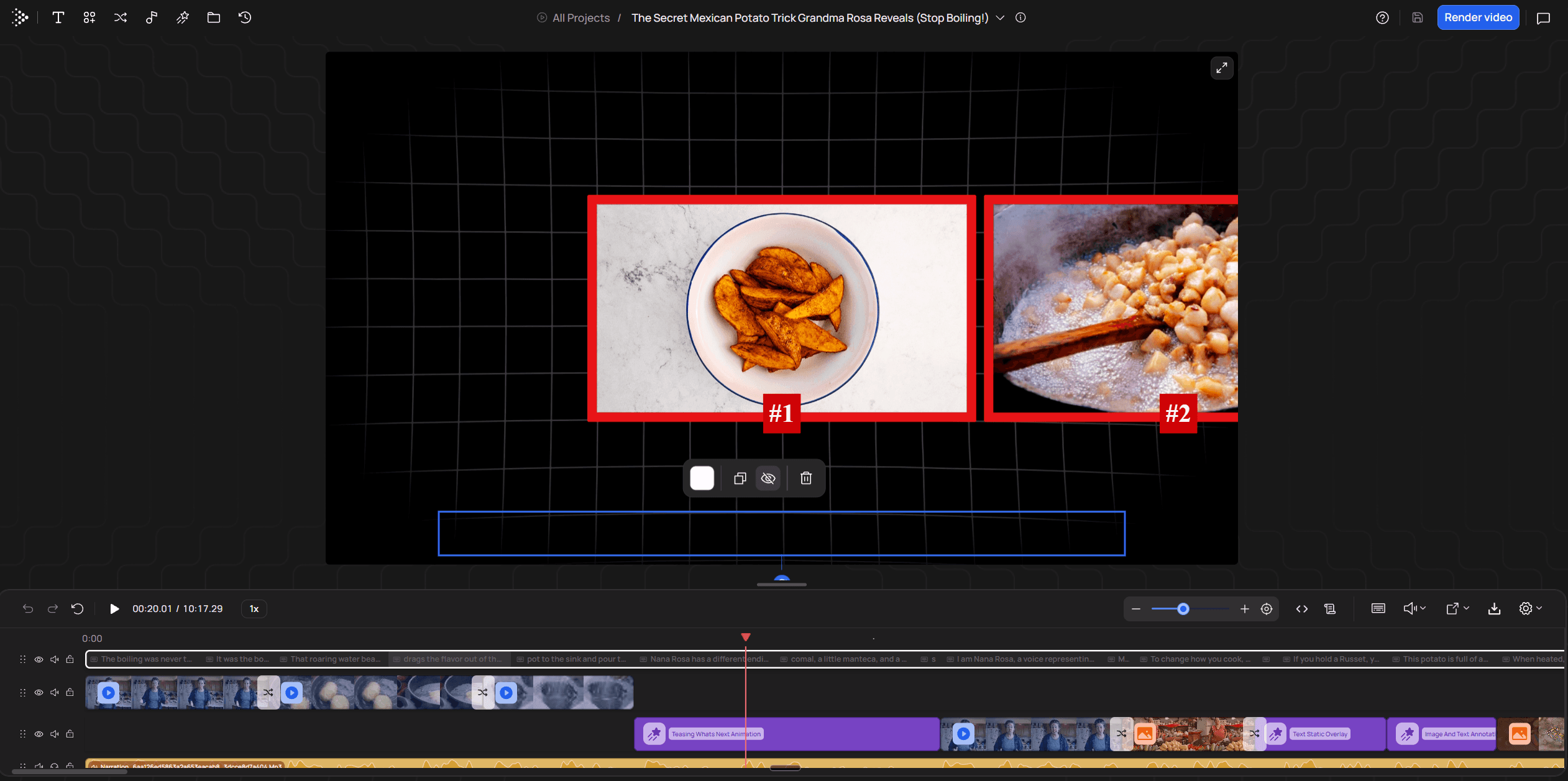
Then open the editor. The narration sits on the timeline as sentences with the clips beneath them, so you can see what landed where. Automatic matching can miss a line, so swap anything wrong before you render.
Starter is $99 a month, or $79.20 a month billed annually, for about 45 finished minutes. That's roughly $2 per finished minute, with no free plan or trial. Our pricing page estimates hand-sourcing at 10 to 25 minutes of hunting per finished minute. That's our estimate, not a timed test, so time your own next video against the $2. If you're starting a faceless channel, that cost comes back with every upload.
It's long-form widescreen only, so for Shorts and vertical video CapCut or Opus Clip fit better. It also won't film your product in your hands, so those shot-list lines still go to your phone.
In short:
Prompt, script, voiceover or talking-head recording in; a finished 6 to 60 minute 1080p video out.
No clip searching: licensed Storyblocks and archival footage, none of it AI-generated on Pro.
Each clip sits under its sentence in the editor, so you swap misses before you render.
Roughly $2 per finished minute on Starter, against the evenings you'd spend hunting.
How to shoot your own b roll with a phone
To shoot b-roll with a phone, lock the auto settings and hold every shot longer than feels necessary. Film each subject from three distances. Phone b-roll looks cheap because of the auto settings, and the sensor is rarely to blame. These are habits from filmmakers who shoot on phones, not measured rules.
Wipe the lens and turn HDR video off.
Tap and hold the subject to lock focus and exposure. Drag exposure down slightly, so nothing pulses when your hand enters the frame.
Shoot 60 fps for motion you'll slow down: 40% on a 24 fps timeline, 50% on 30 fps. Slowing it smooths small handheld shakes.
Hold each shot 8 to 10 seconds, still before and after the action, so the editor can trim the wobble. I'd never skip this: every editor I've worked with has complained about clips that end the instant the action does.
Film each subject wide, mid and close so you have cuts to choose from.
Warning: Skip 60 fps under indoor bulbs that flicker. If you see bars or pulsing on screen, drop back to 24 or 30 fps, or move to daylight.
For light, put the subject at an angle to a window. Switch off the ceiling lights so daylight and warm bulbs don't mix. Bounce some light back with a white card.
How to edit b roll so your YouTube video looks cinematic
To edit b-roll so it looks cinematic, start each cutaway on the word it illustrates. Hold it as long as the viewer needs to take it in. Pasted-on b-roll is almost always mistimed, so fix the timing before hunting for better footage.
Cut in on the spoken noun or verb, so the picture confirms the word as it's said.
Follow a wide with a close-up when the narration moves to detail, instead of sitting on the wide.
Match colour with small exposure and white balance fixes, and skip heavy LUTs on phone footage.
What's on screen | Hold for | Why |
|---|---|---|
Under 1.5 seconds of anything | Avoid | Too short to register |
Simple object or lifestyle shot | About 2.5 to 5 seconds | Long enough to identify the subject |
Chart, document or screen | 5 to 10 seconds or more | There's text or numbers to read |
Hold a cutaway for as long as its content needs, not to a fixed rhythm. Ranges from one editing agency's guidance.
Then run the subtraction test: if staying on the speaker would lose no information, the cutaway is filler. A generic skyline over a sentence about losing money adds movement and nothing else. The hold ranges come from one editing agency's guidance, so treat them as a starting point.
In short:
Cut each cutaway in on the word it illustrates.
Hold it as long as its content needs, from about 2.5 seconds to 10 or more.
Drop any cutaway that adds movement but no information.
Sourcing is the part of how long editing a YouTube video takes you can buy back, so price a paid library or VidRush against your evenings.
Frequently asked questions
Can I use AI to generate b roll footage for YouTube?
Yes, but you pay a lot per second, and it's weakest exactly where stock fails. For hands handling a specific object, I'd still use your phone.
Are paid stock footage sites worth it compared to free b roll sites?
Only once free searches keep failing on your lines. If the gaps are hands-on shots, a subscription won't fix them and your phone will. If they're generic lines the free libraries miss, a single month of Envato is the lowest-commitment way to find out.
Can I download b roll from other people's YouTube videos?
No, not as a b-roll source. Every route on this page gives you a licence you can read and save, and someone else's upload gives you nothing to save.
Is 4K b roll worth it for a 1080p YouTube video?
It's useful if you plan to crop or punch in, because you keep detail at 1080p. Otherwise download the 1080p file and save the drive space. Matching light and timing matter far more than resolution.