Theo Brennan
Editor

There is no single best AI video editor. The label covers tools that take different things in and hand different things back: one builds a whole YouTube video from a script, one cuts your recording when you delete words from its transcript, another chops a podcast into Shorts. Pick by what you start with. I work at VidRush, and it is my pick when the job is a long-form YouTube video from a topic, script or recording. For every other starting point I name the tool I would send a friend to.
If your videos run past a couple of minutes, look at the price last. The longest file a plan will take and the minutes it gives you each month decide whether it works for your video at all, and the cost section shows how to check both against your own length.
What is the best AI video editor for each job?
Find the row that matches what you start with and what has to come out. Ignore feature counts. A tool with forty features built for the wrong input will make every video harder.
You start with | You need | Pick | From | Free tier? |
|---|---|---|---|---|
A topic, script, voiceover or talking-head recording | A finished 6–60 minute widescreen YouTube video | VidRush | $99/mo | No |
A recording of you talking | That recording tightened by editing its transcript | Descript | $24/mo (Hobbyist) | Yes: 60 media minutes a month, 720p, watermark |
Remote guests to record | Clean separate tracks for each person | Riverside | $35/mo (Pro) | Yes: 2 hours in total, 720p, watermark |
A long video or podcast | Vertical clips for Shorts, Reels or TikTok | OpusClip | $15/mo (Starter) | Yes: 60 processing minutes a month, watermark |
Phone or camera clips | A quick social edit | CapCut | $19.99/mo (Pro) | Yes, but auto-captions are Pro-only |
A prompt and no footage | A stock-footage marketing draft | InVideo AI | $20/mo (Starter) | Yes: watermarked, non-commercial |
Your own footage and editing time | Full manual control on a timeline | DaVinci Resolve or Premiere Pro | $0 / $22.99/mo (annual plan) | Resolve yes, but its AI tools need Studio; Premiere has a 7-day trial |
No budget at all | A simple edit in the browser | Microsoft Clipchamp | $0 | Yes |
Find your row: the pick depends on what you start with and what has to come out. Prices checked on vendor pages, October 2026.
Note: How we researched this: we went through 11 claims in current page-one ranking articles that a named AI feature was free, recording what each article said and which vendor page, if any, it cited. We then went through 17 free and paid plan tiers on the vendors' own pricing, credit and help pages. Every tool price on this page was read from the vendor's own page in October 2026.
If you searched for the best AI video maker and want a finished long-form YouTube video from a topic or a script, VidRush is the pick. InVideo AI suits a quick prompt-to-stock marketing draft. A maker starts from words and builds the video around them. An editor starts from footage you already shot: Descript, CapCut, Resolve and Premiere edit, OpusClip repurposes long videos and Riverside records. Pick by your starting point, because a tool built for the other one will fight you on every upload.
A generator is a third kind of tool. Runway and its neighbours make new seconds-long clips from a prompt, with no edit around them, and how AI video generation works covers that category if a clip is what you are after.
The best AI video editors compared, tool by tool
The cost per video below is my arithmetic from each published price and allowance, at the length and volume stated. The cleanup column is a rough estimate of the fixing each tool's output needs, based on what it hands back: a timeline you can adjust, a draft of stock matched to keywords, or raw footage you cut yourself. Nobody timed the same 10-minute job on every tool. Use the column to plan your evening, not to rank the tools against each other.
Tool | Input | Output | Entry price | Free tier stops at | Cost per finished video | Cleanup (estimate) | Rules it out if |
|---|---|---|---|---|---|---|---|
VidRush | Topic, script, voiceover or talking-head recording | 6–60 min 16:9 video on an editable timeline | $99/mo for 2,000 credits | No free tier or trial | About $21.80 per 10-min video (Starter) | 15–30 min review | You need Shorts, vertical video or a screencast tutorial |
InVideo AI | Prompt or script | Narrated stock and AI-clip draft | $20/mo Starter; Plus $60/mo | Watermarked, non-commercial | About $20 per 10-min video (Plus, monthly) | 45–90 min | You revise a lot, or need a separate caption file |
Descript | Your recorded audio or video | Recording cut by its transcript | $24/mo Hobbyist | 60 media min/mo, 720p, watermark | About $6 per 15-min video at 4 a month | 30–60 min covering jump cuts | You have no footage |
Riverside | Remote calls or uploads | Separate local video and audio tracks, plus AI clips | $35/mo Pro | 2 hours lifetime, 720p, watermark | About $8.75 per 45-min episode at 4 a month | 15–20 min per clip | You want to edit in it, or need timeline export below Business |
OpusClip | Long video file or link | Vertical clips with captions | $15/mo Starter | 60 processing min/mo, watermark, 3-day storage | About $6 per 60-min source (Starter) | 10–15 min per clip | Your sources are long and frequent |
CapCut | Clips or a script | Short social edits | $19.99/mo Pro | 1080p without watermark only if no Pro assets; no auto-captions | About $1 per video at 20 a month | 1.5–3 h on script-to-video drafts | You wanted free captions |
DaVinci Resolve | Your footage and audio | Master file up to 4K (free) | $0; Studio $295 once | AI transcription, subtitles and voice isolation are Studio-only | $0 on Free; Studio about $6 per video in year one at 4 a month | 4–8 h manual per 10-min video | You expected AI in the free version |
Premiere Pro | Your footage and audio | Professional edit | $22.99/mo on annual plan | 7-day trial, no free tier | About $5.75 per video at 4 a month (annual) | 3–6 h manual | You will not assemble by hand |
Same fields for every tool, with prices from vendor pages in October 2026. Cost per video is our arithmetic at the stated length and volume. Cleanup is a rough estimate, not a timed test.
You have a topic or script and no footage
VidRush: finished long-form YouTube video
I cut long form for a history and engineering channel for three years, and finding the footage ate more of each week than cutting it did. That is the job VidRush takes off you. You paste a topic or script, or upload a voiceover or talking-head recording, and a draft comes back with stock and archive footage, voiceover, captions and music laid out on a timeline. The clips are real footage chosen to fit the script.
Starter is $99 a month for 2,000 credits, which buys about 45 finished minutes, or about $2.18 a finished minute. That works out at about $21.80 for a 10-minute video. Credits are quoted before you approve a video, and the walkthrough further down shows that screen.
There is no free plan or trial. Output is widescreen only, at 6 to 60 minutes. Shorts and vertical clips go to OpusClip or CapCut, vlogs and tutorials to Descript or a hand editor, and a $0 budget to Clipchamp or Resolve Free.
A faceless documentary channel is the clearest fit, because the whole video is narration over footage. The trade-offs for that kind of channel are in our pick of the best AI video editor for faceless YouTube.
InVideo AI: fast prompt-to-stock drafts
InVideo AI turns a prompt or script into a narrated draft built from stock footage and short generated clips. InVideo's pricing puts Plus at $60 a month (or $30 a month billed annually) for 2,000 credits. A 10-minute video with a few revisions burns roughly 400 to 600 credits, so you get about three videos a month at about $20 each on monthly billing. The free tier is watermarked and non-commercial.
Watch the revision meter. Each chat edit costs 10 to 50 or more credits, the subscription cannot be refunded once you have generated anything, and captions are burned into the MP4 with no separate SRT file. Expect 45 to 90 minutes replacing mismatched stock clips and re-levelling the background audio.
It is a decent tool for a quick marketing draft. On a weekly YouTube channel I would worry about paying in credits for every change of mind.
If you are weighing InVideo AI against Pictory and the other storyboard-style script-to-video tools, compare one thing first: whether the stock they pick matches what a line means or only its keywords. The keyword matches are the clips you end up replacing by hand, so that is where your cleanup time goes.
You recorded yourself talking
Descript: cut the video by editing the text
Descript turns your recording into a transcript, and deleting a word deletes that moment from the video. It needs footage you already shot and does not build a video from a script.
Descript's pricing page gives the free plan 60 media minutes a month at 720p with a watermark. Hobbyist is $24 a month ($16 billed annually) for 10 media hours and 400 AI credits, which comes to about $6 per 15-minute video at four a month. Timeline export to another editor starts on Creator at $35 a month.
Every text cut is a jump cut on screen. Expect 30 to 60 minutes per video covering those cuts with B-roll and smoothing breaths. Cover all of them or commit to them as a style, because a few left in by accident look careless.
Studio Sound, which cleans up room echo, is the audio feature that often settles the choice for people recording in a spare bedroom. The limit to know is file length, since the timeline gets sluggish on files over about 45 to 60 minutes.
If you want to make the cuts yourself, this is the most natural way I know to tighten a talking recording. If you would rather not touch a timeline at all and the recording is for a long-form YouTube video, VidRush's talking-head input cuts dead air and filler, adds B-roll and captions and hands back a finished edit. It takes English speech, from 6 minutes to 2 hours.
Riverside: record here, edit somewhere else
Riverside is a recording studio in the browser. It saves each guest's video and 48kHz audio on their own machine, so a bad connection does not ruin the file. Riverside's pricing gives the free plan 2 hours of multitrack recording in total, not per month, at 720p with a watermark. Pro is $35 a month ($24 billed annually) with 15 hours of track downloads, about $8.75 per 45-minute episode at four a month.
Its browser editor lags and drifts out of sync compared with a desktop editor, and timeline export to Premiere or Final Cut is locked to the custom Business tier. The AI clips need roughly 15 to 20 minutes each to fix speaker-switching mistakes and clip boundaries.
Many podcasters settle on a split, which Descript's own comparison with Riverside describes: record in Riverside, edit in Descript or a desktop editor. I would buy Riverside to record and nothing else.
You need clips or quick social posts
OpusClip: long videos into vertical clips
OpusClip takes a long horizontal video and returns 9:16 clips with captions and auto-framing. The allowance counts minutes of your source, not clips: OpusClip's help page on credits charges 1 credit per minute uploaded, so a 60-minute podcast costs 60 credits whether you get one clip back or ten. Divide the allowance by the length of your raw video, not by the number of clips you want.

On OpusClip's pricing page, Free Forever gives 60 processing minutes a month with a watermark and three-day storage. Starter is $15 for 150 minutes, enough for two and a half hour-long podcasts, at about $6 per 60-minute source. Pro is $29 for 300 minutes and adds Premiere and Resolve export. Unused credits last one extra month.
Expect 10 to 15 minutes per clip moving start and end points the AI cut mid-thought. If you ever stop paying, download everything first, because projects are deleted three days after you cancel.
CapCut: quick social edits, captions now paid
Check the date on any CapCut review before you trust it. According to CapCut's pricing-change notice, the plans were restructured on March 25, 2026, and auto-captions and vocal isolation moved behind Pro.
Pro is now $19.99 a month ($179.99 a year) with 1,200 AI points and 1TB of storage, which comes to about $1 per video at 20 social videos a month. The free desktop app still exports at 1080p without a watermark, as long as you use no Pro-badged assets.
For fast vertical edits with trending templates, CapCut is still quick, and at 20 posts a month the price is fair. Its script-to-video drafts are weaker: expect 1.5 to 3 hours replacing stock clips that only match keywords.
The captions paywall is what pushed people out. One creator's cancellation post tracked Pro going from $3.99 to $9.99 to $19.99 and said, "I only used it for auto captions." If captions are the only reason you open CapCut, you are paying a monthly subscription for one feature, and the free picks by device later on this page do that job for $0.
You want to edit by hand, with AI helping
DaVinci Resolve: free editor, paid AI
Resolve Free is a superb editor with no AI speech tools in it. It costs $0, exports up to 4K at 60fps without a watermark and allows commercial use. Blackmagic's Studio 21 feature notes mark audio transcription, text-based editing, speaker detection, automatic subtitles and voice isolation as Studio-only. Since Resolve 21.1, the scripting access that third-party transcription panels relied on is Studio-only too. Studio is a one-time $295, which comes to about $6 per video over the first year at four a month.
You do all the assembly yourself: roughly 4 to 8 hours for a 10-minute video, on a machine with a proper GPU. Ranking pages that call it a free AI editor are wrong about the AI and right about the editor. If you edit weekly and want speech tools, I would pay for Studio once before starting another monthly subscription. A one-time licence never charges you in a month you did not publish.
Premiere Pro: the pro timeline with AI built in
Adobe's Premiere page lists $22.99 a month on an annual commitment or $34.49 month to month, with a 7-day trial and no free tier. That is about $5.75 per video at four a month. Text-based editing now removes pauses and filler words in bulk. Generative Extend adds frames at the end of a clip to hold a reaction, but it draws on just 25 generative credits a month on the single-app plan.
Assembly, pacing and grading are still manual, at roughly 3 to 6 hours a video. That was the reality in every edit bay I worked in, and the AI features have not changed it. If you already know Premiere, treat them as a bonus. If you do not, they are no reason to learn it, because the hours go into the timeline whatever features sit on top of it.
What a finished video actually costs, beyond the monthly price
For anything longer than a couple of minutes, work out the cost per video from three plan limits first and the price last. The limits are the longest source the plan accepts, how many of your videos the monthly allowance covers, and whether unused credits expire. If a plan fails the first one, you pay full price and get nothing. The price only decides what you pay once a plan passes all three.
Check three limits against your own video length
I expected some of the cheap plans to drop down the order once we counted cost per video instead of monthly price. Across the 17 plan tiers we went through, too few state both a price and a usable allowance to test that. What the plans did show is that the limits rule a plan out before the price comes into it.
Check the longest source accepted. One $19 clipper tier in our set caps videos at 2 minutes, so a 15-minute recording cannot go in at any volume. The price looked right and the plan is useless for long-form.
Divide the allowance by your length. Descript Free and OpusClip Free Forever each give 60 minutes a month, which is exactly four 15-minute videos. One 16-minute source puts you over in week four.
Find out what happens to unused credits. On the pricing pages of the 17 competitor plan tiers we went through, rollover appeared on one and a refund for failed renders on one, both upper tiers. Five said plainly that credits expire and most said nothing. OpusClip is the exception to know about: its help page, not its pricing page, says credits last an extra month. VidRush was not one of the 17, and its terms are in the VidRush section.

Treat a length cap as a dealbreaker even when the price looks right. You can buy more minutes, but no amount of money gets a 15-minute file past a 2-minute cap. Expiry is the quieter cost. If you publish once a month, a credit plan that resets every month charges you for the weeks you did nothing. In that case start on a free plan or a one-time licence, and pay monthly only once you are uploading at least twice a month.
AI tool, freelancer or doing it yourself
A person costs $81 to $327 a video in cash. Pixflow's rate benchmarks put entry-level marketplace freelancers at $150 to $300 for a 10-minute video, and an AI subscription at roughly $5 to $25 a video plus 15 to 45 minutes of your own review. Fixed-price services sit either side of the freelancers: Increditors' roundup of service pricing lists Video Husky at $81 to $90 for a simple talking-head edit and $121.50 to $135 for a faceless stock edit, and Tasty Edits' own price list runs from $327 for one horizontal video down to $278 each in an 8-pack.
Route | Cash per long-form video | Your time per video | Turnaround |
|---|---|---|---|
AI tool subscription | About $6 to $22 for a 10-min video, rising with length | 15 min to 3 h review and cleanup, depending on tool | Same day, depending on processing |
Entry-level freelancer | $150–300 for a 10-min edit | Briefing and revision notes | Days |
Editing service (Video Husky) | $81–90 talking head; $121.50–135 faceless | Briefing and revision notes | Varies by service |
Editing service (Tasty Edits) | $278–327 | Briefing and revision notes | 48 hours |
DIY in a hand editor | $0 to a software licence | Roughly 4–8 hours per 10-min video | As fast as your evenings |
AI moves the cost from cash to your review time. Freelancer and service rates as published in October 2026. The AI row is our own arithmetic from the plan prices and cleanup estimates earlier on this page, not a published benchmark, and it grows with video length.
Read the table by the column you are shortest on. Short on cash with time to spare, edit it yourself. Short on time with a budget, the freelancer and service rows are honest prices for a person making the calls. Most solo creators are short on both, and for them the AI row only works if the 15 to 45 minutes of review is actually in the week, because that pass is where a robotic-looking cut gets caught before upload.
How VidRush turns a topic or recording into a finished YouTube video
Your part of a VidRush video is two short passes: checking the quote before anything is generated, and reviewing the draft after it lands on the timeline. Everything between them happens in the cloud.
What you hand over
A topic prompt of 200 to 10,000 characters. VidRush works out the format, length and voice, and you confirm them later.
A finished script, from 780 characters up to about an hour of narration. Scripting is skipped and your words are used; our guide to turning a script into a video covers this input in depth.
Your own voiceover as MP3 or WAV, 6 to 60 minutes. The edit is timed to your narration.
A talking-head recording of 6 minutes to 2 hours, English speech only. Dead air and filler are cut, B-roll and captions are added, and the result runs about 90% of the original length.
The recording route is the one people underestimate. If you film to camera, you can turn a talking-head recording into a finished video without opening a timeline first, and our guide to editing talking-head footage with AI goes through that input step by step.
What you check before any credits are spent
Submit the input. A check returns Passed, Warning or Blocked, and a blocked brief costs nothing.
Read the Quote Statement: brand profile, model, video title, language, duration, editing format and voice, with the estimated cost on its own tab.
Change the title or voice if they are wrong, then click Approve and continue.
Wait for delivery. Credits come off only when the video is delivered, so a failed generation costs nothing.

Read this screen slowly, because it is your last cheap correction. A duration set to 10 to 12 minutes when your script reads at 15, or a listicle format on what should be a documentary, costs nothing to change here and a re-render later. In an edit bay this was the brief meeting, and the jobs that went wrong had usually skipped it.
What comes back, and your review pass
Most videos land within about an hour, and at peak times it can take up to five. Rendering runs in the cloud, so you can close the browser and come back. The draft arrives with voiceover, captions and music on separate tracks. On the Mini and Pro models the visuals are real footage drawn from licensed stock, public archives and the web, assembled against your script, and those models do not generate the frames.
Plan on roughly 15 to 30 minutes for the review, my estimate rather than a timed figure. Watch it through once at full speed and note three things: clips that match a word in the line instead of its meaning, names spelled wrong in the captions, and music sitting too loud under the narration. Most of the time goes on swapping three to six stock clips that miss the line they sit under.
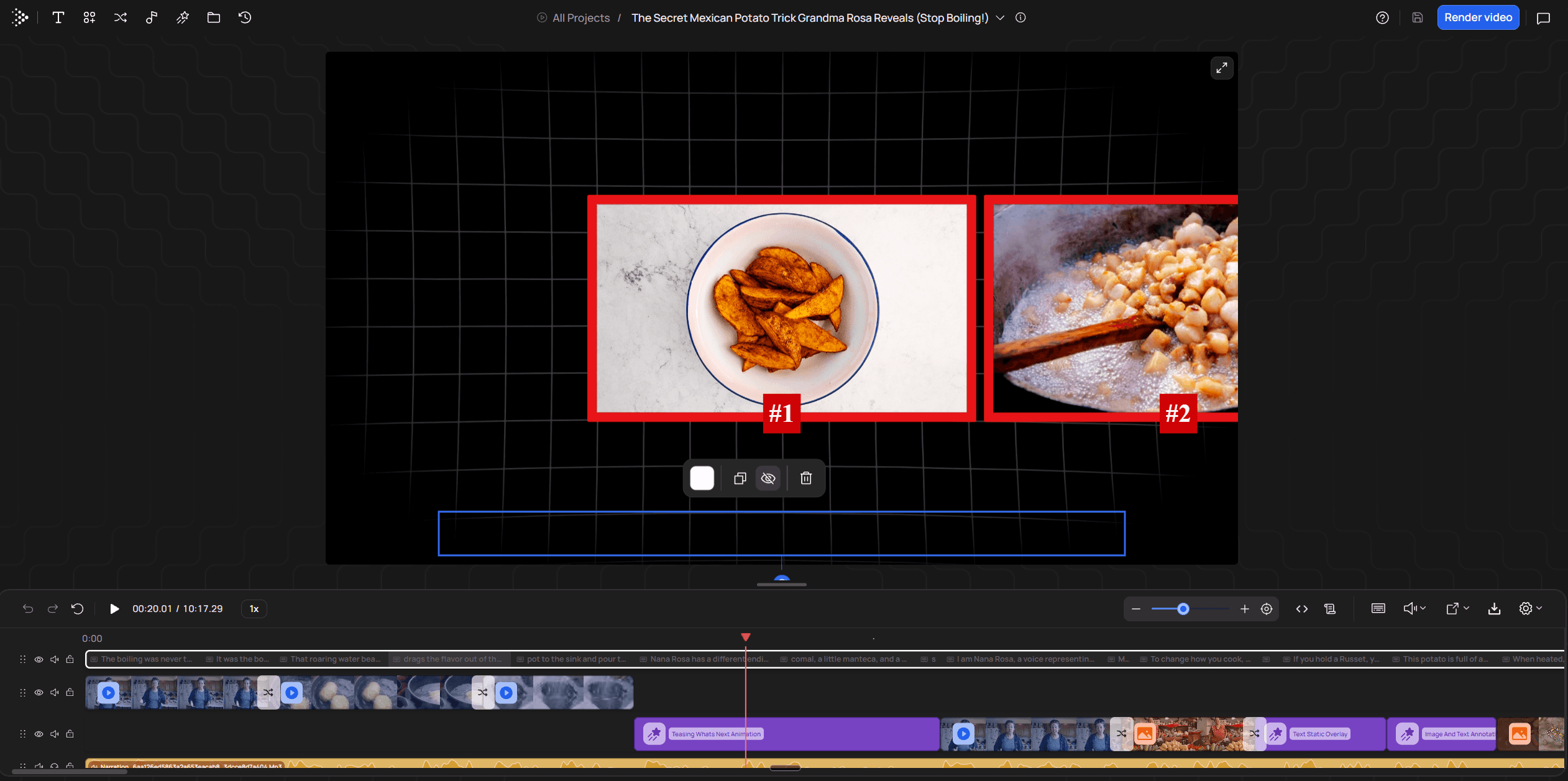
You fix them in VidRush's timeline editor and Rush Agent. On the timeline you swap a clip, retime it, correct a caption or replace audio. Rush Agent, which is in early beta, takes typed instructions such as finding a better alternative for a clip or regenerating a broken stretch of voiceover, and it works best on about 30 seconds at a time. A re-render costs about 10% of the original credits.
Against a freelancer, and when your topic will not work
Against a freelancer, the arithmetic is short. A 10-minute video on Starter costs about $21.80 in credits, and an entry-level freelancer charges $150 to $300 for the same length. The freelancer makes the editorial calls for you. With VidRush you make them yourself in the review pass, so the gap is what you are paid for that pass.
Before you pay, test your topic. Search YouTube, Wikimedia Commons and public archives for it. If you cannot find about 20 minutes of real footage, the draft falls back on generic stock, and no review pass will fix a video with nothing real to show. Hyper-local stories and abstract philosophy are where this usually fails. Tutorials, screencasts, gaming, vlogs, reactions, compilations and 3D animation do not get that far, because the input check turns them away before any credits are spent.
There is no free tier or trial, so your first paid video is the test. Start on Starter from VidRush plans and credits with the subject that has the most footage you can find. The Quote Statement for that video lists the format, length, voice and estimated credits before anything is charged, which tells you what a video at your length will cost each month.
What is the best free AI video editor for PC, phone or browser?
If paying is out, a free plan has to clear the same limits as a paid one plus three of its own: a 1080p export without a watermark, no trial clock, and no export block waiting at the end. By device, that means Clipchamp in a browser, DaVinci Resolve Free on a PC or Mac (as a plain hand editor), and VN on a phone. CapCut is free too, as long as you know where it charges you. VidRush has no free plan or trial, so it is not on this list.
Check the vendor's plan page, not the ranking
We logged 11 claims from page-one articles that a named AI feature was free. In 9 of them the feature was called free with no limit mentioned, and only 5 named or linked any vendor page. The count tells you how the claims are phrased, not how many are wrong, but the pattern is worth knowing: the claims I trusted least were the worst sourced.
Resolve is the clearest example. Pexo's free-editor roundup says Magic Mask and voice isolation run on the free tier, and it cites no pricing page. Blackmagic's own Studio page lists both as exclusive to Studio. The same article is dated September 15, 2026 but says its figures were verified in June, and a checked date three months older than the update date is a warning in itself.
Look for the cap more than the feature list, because the cap makes people pay sooner than any missing feature does. Four 15-minute videos a month is enough to learn whether you like a tool and not enough to run a channel on it, and the free plans are set at that level on purpose.
Device | Pick | Free export | Watermark or outro | AI at $0 | What you'd pay for |
|---|---|---|---|---|---|
Browser | Microsoft Clipchamp | Up to 1080p | None | Auto-captions with SRT, text-to-speech, silence removal, noise suppression | 4K and premium stock (Premium, $11.99/mo) |
PC or Mac | DaVinci Resolve Free | Up to 4K 60fps | None | None of the Neural Engine AI tools | Studio, $295 once, for transcription, subtitles, voice isolation, Magic Mask |
Phone | VN Video Editor | Up to 4K 60fps | None | No AI tools | n/a |
Phone | CapCut | 1080p if no Pro assets are used | 2-second branded outro on mobile (deletable) | Templates; auto-captions are Pro-only | Pro, $19.99/mo |
Free picks by device. Checked October 2026; recheck the vendor's plan page before you build a workflow on it.
In a browser: Clipchamp
Clipchamp's pricing page gives the free plan watermark-free 1080p exports with no export cap, auto-captions in 80 or more languages with a downloadable SRT, over 400 text-to-speech voices, silence removal for pauses over three seconds, and noise suppression. The catch is premium assets. If one is on your timeline, the free plan will not export, so keep to the free library.
I would make Clipchamp the default for anyone who wants AI captions at $0. Other tools on this page do more, but Clipchamp's free plan says exactly what you get. It was also the best-sourced tool among the free claims we logged, with the articles citing Microsoft's own pages and agreeing with each other.
On a PC or Mac: Resolve Free, as a plain editor
Resolve Free is on this list because it is the best $0 timeline there is, with watermark-free 4K exports and commercial use allowed. Do not count it among the AI editors, though. Transcription, automatic subtitles, voice isolation, Magic Mask and Smart Reframe all need the Studio licence.

On a phone, and what replaces CapCut
CapCut on mobile is still quick for vertical edits, but it charges you in three places. Free exports add a 2-second branded outro card, which you can delete or switch off in settings. Auto-captions sit behind Pro. And a Pro-badged template or effect left on the timeline brings back a watermark or blocks the export entirely, as CapCut's comparison of its Standard and Pro tiers sets out.
Export a 10-second test clip as soon as you start a project, before you have built an edit around a Pro asset. The fix comes from a r/NewTubers warning thread where creators describe CapCut luring users in with effects and then locking them.
VN Video Editor is the phone pick if you want nothing added to your export. It exports watermark-free up to 4K 60fps on iOS and Android, with a multi-layer timeline and keyframes and no AI tools. If you are leaving CapCut, choose the replacement by the job you used CapCut for:
For captions, use Clipchamp in the browser, with SRT download.
For editing on your phone, use VN.
For a full desktop timeline, use Resolve Free, and add Studio later if you need its AI speech tools.
Can AI edit videos well, and can ChatGPT do it?
AI is good at the packaging: expect usable captions, graphics and transcripts. A raw automated dialogue cut with nothing laid over it is where tools slip most, so judge the cut yourself on any tool. An edit that covers its cuts with B-roll, as VidRush's talking-head input does, still needs your review pass, and whether it holds up for your delivery is your call. ChatGPT cannot edit a video file at all.
Where AI gets it right and where it slips
In one creator's published day-long test of automated editing against his own editor, the automated talking-head cut handled pauses badly and clipped sentences, while the 3 to 8 second animated overlays mostly came out usable. That was a bare dialogue cut with nothing covering it, and it is one test, not a rule. Whatever tool cuts your recording, watch the pauses when you review, because that is where the misses show.
Captions slip on names. A benchmark of Whisper on 421 commentary segments found a 21.7% word error rate on audio dense with proper names and jargon, with mangled names among the commonest errors. Proofread every name before you export.
Hide what automatic cuts leave behind
Automatic filler and silence removal leaves clicks in the audio and jumps in the picture. PremiereGal's method for hiding jump cuts takes care of most of them:
Put a 2-frame audio crossfade on every cut to remove the clicks.
Punch in 10 to 15% on the clip after a jump cut and nudge it left or right, so it reads as a second angle.
Start the B-roll 5 to 10 frames before the audio cut, so the picture change covers the splice.
Can ChatGPT edit your video?
No. As of October 2026, OpenAI's file help does not list video editing, and uploading a video to get an edited one back ends in an error. ChatGPT can plan a cut list from your transcript or write FFmpeg commands for you to run on your own machine. I would use it for the cut list and nothing else, because planning is the quick part and the hours go into the timeline.
If your video uses an AI voice or an AI presenter, read our page on YouTube's rules for AI content before you upload. We keep it current, and I am not repeating any of it here because those rules change faster than a tool review does.
How to choose an AI video editor and test it before you pay
Use four facts about your video to rule tools out. Then spend under an hour testing your top pick on your own worst material, and decide before the month's subscription is gone. If the test fails, move to your second choice instead of fixing the first one.
Rule out the tools that can't take your video
Do you have footage? With only a script or topic, a transcript editor like Descript has nothing to cut, so shortlist the tools that build the whole video from a script. With a recording, decide how much of the edit you want to do. VidRush turns an English talking-head recording of 6 minutes to 2 hours into a finished long-form YouTube video. A transcript editor or a hand editor suits you if you want to make every cut yourself.
How long is the finished video? Over six minutes, drop any plan with a short source cap. Under a minute, drop the long-form tools, which won't take clips that short.
Which way up? Vertical 9:16 needs auto-reframe and big captions. Widescreen 16:9 needs room for B-roll and documentary pacing.
How much control do you want? If you want to choose every transition and grade, use a hand editor. If you want a finished draft to review, use a tool that builds the whole video.
Those four answers should land you in one row of the table at the top of this page. If you start from a script, the choice is between a tool that builds the whole video and the storyboard-style tools, where you swap stock scene by scene. Pick the first if your videos run long, because scene-by-scene replacement on a 20-minute script takes the evening you were trying to save.
Run the test on your own material
The steps below come from Recapo's checklist for long-form creators, which is one publisher's method rather than a standard. I'd run it as written, with one rule of my own: never test on the vendor's sample media. Every demo I have watched used footage shot to cut well. Yours wasn't.
Load 3–5 minutes of your messiest real material, with the cough and the long pause left in, or a script you actually plan to publish.
Run the tool's main job once, then listen to five cuts in a row on headphones. Clipped word endings or swallowed breaths mean you will be fixing every cut by hand.
Check the B-roll against the nouns in your script. A drone shot of a city under a line about a lighthouse fails, and so does the same clip showing up twice.
Swap two clips and correct one misheard word. Note how many credits that cost and whether it forced a full re-render.
Export and confirm 1080p with no watermark, and check the timeline file opens in your editor if you finish somewhere else.
When to walk away
Recapo's threshold has two parts. Walk away if fixing the tool's mistakes took longer than cutting the clip yourself, or if one test used more than a quarter of the month's credits. I'd add a third: if the B-roll missed your nouns on most lines, stop there, because swapping clips is the slowest kind of fix and it does not get quicker on a longer video.
VidRush has no free trial, so your first paid video is the test. Paste a real script long enough for at least six minutes of narration, or upload a recording, and check the Quote Statement as described above before you approve. Then run checks two to five on the draft that comes back. Here the quarter-of-your-credits test applies to what the fixes cost, since the draft itself uses most of a video's credits. If the draft passes, stay on the plan.
If it fails any of those checks, cancel before the renewal date and run the same hour on the second tool in your row. Two honest tests on your own footage will tell you more than any ranking, including this one.
Frequently asked questions
Can ChatGPT do video editing?
No. It cannot take a video file in and hand an edited one back. Where it helps is the step before the edit: paste your transcript, ask for a cut list, then make the cuts yourself in an editor.
What is replacing CapCut?
For most people who left over the captions paywall, Clipchamp's free browser plan, which includes auto-captions with an SRT file. For phone editing, VN replaces it, and for a desktop timeline, DaVinci Resolve Free. If you only make long YouTube videos, you may not need a short-form editor at all.
Does VidRush have a free trial?
No. There is no free plan or trial, and Starter is $99 a month. You see the estimated credits on the Quote Statement before you approve, and credits come off only when the video is delivered, so treat your first paid video as the test.
Which AI video editor is easiest for a beginner?
If you recorded yourself talking for a long YouTube video and don't want to learn a timeline, VidRush turns the recording into a finished edit you review. If you want to make the cuts yourself, Descript, because deleting words in the transcript is easier to learn than a timeline. If you have no budget, Clipchamp in a browser. If you have a script and no footage, use a tool that builds the whole video, so you never have to learn a timeline to finish one.
How long should I test an AI video editor before paying?
About an hour on 3–5 minutes of your own material is enough to see the problems that matter. A 60-minute free allowance covers that test several times over, so if you are still unsure after two runs, the tool probably isn't the right one.