Theo Brennan
Editor

There is no single best AI video editing software, because these tools do different jobs. VidRush turns a recording, script or voiceover into a finished long-form YouTube video, while Descript edits speech through the transcript. Opus Clip cuts long videos into shorts, Riverside records remote podcasts, and Runway changes real footage with text prompts. VidRush makes no shorts and doesn't alter individual shots from a prompt, so those two jobs belong to Opus Clip and Runway.
Within a job, two things decide it, and neither is on the pricing banner. The first is the cost at the minutes you actually publish. The second is how much of the AI's cutting you still fix by hand.
I work at VidRush. It leads this list for one job out of eight. The other seven get the same treatment: what goes in, what comes out, what it costs and who should skip it.
Note: We analysed 29,088 small-to-mid sized faceless and niche channels for the minutes they publish a month. We coded 30 Reddit threads, from January 2025 to November 2026, where an automatic editing feature failed on a creator's own footage. Every price and cap was checked on the vendor's own page in November 2026.
What is the best AI video editing software?
Pick the job before you pick the tool. Find the row that matches what you have and what you need back, and that row is your starting point.
Job | Tool | What you feed it | What comes back | Entry price |
|---|---|---|---|---|
Finished long-form YouTube | VidRush | One English speaker on camera (6 min to 2 h), a script or a voiceover | Finished 1080p widescreen MP4 with B-roll, captions and mix | $99/mo, no free plan |
Edit speech as text | Descript | Recorded audio or video | Text-edited cut, SRT subtitles, XML on Creator | $24/mo Hobbyist |
Long video to shorts | Opus Clip | A finished horizontal video | Vertical 9:16 clips with the speaker reframed | $15/mo Starter |
Free social editing | CapCut | Raw media on desktop or phone | Your own timeline edit, up to 4K 60fps | Free; Pro $19.99/mo |
Remote podcast recording | Riverside | Remote guests joining in the browser | Separate video and audio tracks per speaker, Magic Clips | $35/mo Pro |
Pro timeline | Premiere Pro or DaVinci Resolve Studio | Any footage, any length | A timeline you cut yourself, with AI helpers | $22.99/mo or $295 once |
Script-to-stock drafts | InVideo AI | A prompt or script | 3 to 10 min stock-footage montage with burned-in captions | $20/mo Starter |
Prompt-based footage changes | Runway | A prompt or a 5 to 10 second clip | Short generated or altered shots, no timeline | $15/mo Standard |
Eight jobs sold as AI video editing, and the tool that does each one. Prices checked on vendor pages in November 2026.
The expensive mistake is buying for the neighbouring job. These are the versions we saw most in creator threads like this one:
A shorts clipper, bought to finish a horizontal 20-minute video.
A script-to-stock generator, bought to cut camera footage.
A transcript editor, bought in the hope that B-roll and pacing appear on their own.
Check your current editor first
Premiere Pro already includes text-based editing with filler and pause removal, plus Enhance Speech. DaVinci Resolve Studio's $295 licence adds transcription with silence removal and voice isolation. Resolve Free has none of these. If you already pay for either, don't buy a second subscription to do the same job.
Your dialogue cuts may already be locked in Premiere, leaving B-roll, captions and the mix as the slow part. In that case VidRush's AI video editor takes up to five precut clips plus the voiceover they were cut from. It keeps your cuts exactly as supplied and fills the gaps with B-roll.
In short:
Pick the job first, then the tool.
Don't buy a tool built for the neighbouring job.
If you already pay for Premiere Pro or Resolve Studio, check their AI passes before buying anything else.
The 8 best AI video editing software tools compared
Your best AI video editor accepts the footage you already have, and its affordable tier exports the file your next step needs. None of these eight hands you a cut you can publish without checking it.
1. VidRush: finished long-form YouTube videos
VidRush is for the creator who records themselves or writes a script, then loses evenings to the edit. Upload one English single-speaker recording of 6 minutes to 2 hours, or paste a script or upload a voiceover. Back comes a finished 1080p widescreen MP4, with dead air cut, B-roll placed, captions styled and audio mixed. Starter is $99 a month for 2,000 credits, roughly 45 finished minutes, and there is no free plan or trial.
Of these eight, it is the one built to return the whole long-form edit rather than a rough cut or a clip. You still check it in the browser editor, matching B-roll to what you say, fixing caption breaks and swapping misses. Export is a flattened MP4 with no XML, so any further work in Premiere, Resolve or CapCut happens on one clip.
Shorts, podcasts with guests and screen-recorded tutorials belong to other tools on this list. Talking-head uploads have to be in English, and VidRush does its best work where 20 or more minutes of real footage on your topic can be found online.
2. Descript: edit video by editing the transcript
Descript transcribes your recording, and you cut the video by deleting text. In goes audio or video; out comes a text-edited cut with SRT subtitles. The free plan gives 60 minutes a month at 720p with a watermark. Hobbyist is $24 a month for 10 hours at 1080p.
The catch is on Descript's pricing page. Timeline export to Premiere or Final Cut starts at Creator, $35 a month. Hobbyist can't buy top-ups, so if you run out mid-project you have to upgrade.

Editing dialogue as text is quick. It is the cleanest way I know to tidy a talky podcast, because you read the cut instead of scrubbing for it. Filler removal can leave stubs you fix by hand. It adds no B-roll or pacing, which is why people go looking at Descript alternatives when that is their slow part.
3. Runway: change real footage with text prompts
Runway generates or alters short shots from a text prompt or a 5 to 10 second clip. It assembles nothing into a timeline. Standard is $15 a month for 625 credits, about 52 seconds of generated video.
If you came here to spend less time editing, don't start with Runway. It does things to footage no cutting tool can. But you get isolated shots to assemble elsewhere, so it adds work before it removes any.
4. OpusClip: turn long videos into short clips
Opus Clip is the tool for turning long videos into shorts for TikTok and Reels. You give it a finished horizontal video, and it returns vertical 9:16 clips with the speaker reframed. Starter is $15 a month for 150 source minutes with no watermark, and XML export sits on Pro at $29.
Expect to pick and trim most of what it gives you. One creator got 30 clips and spent around 40 minutes going through them. They posted between one and four, because most 'start in the middle of a thought'. It finds candidates fast but does nothing for horizontal long-form, which is the whole split in VidRush vs OpusClip.
5. Riverside: record and edit podcasts in the browser
Riverside is a browser recording studio first and an editor second. It records each remote guest on their own track and cuts automatic Magic Clips from the session. Free gives 2 lifetime hours at 720p with a watermark, and Pro is $35 a month for 15 hours of 4K track downloads, with XML export on Business.
Separate tracks per speaker are what a two-person edit needs. The edit itself still happens afterwards, and a solo creator in one room gains little. So between Descript, Runway and Riverside, choose by where you are stuck. Riverside records remote guests, Descript cuts what you recorded, and Runway only helps when the footage itself needs changing.
6. CapCut: free editor with AI captions and effects
CapCut is a manual editor on desktop and phone. It exports up to 4K 60fps with no watermark, as long as nothing Pro-badged touches the timeline. The catch is that desktop auto-captions and SRT export moved behind Pro, at $19.99 a month.
7. Adobe Premiere Pro: pro timeline with AI tools built in
Premiere Pro is a full timeline editor at $22.99 to $34.49 a month. DaVinci Resolve Studio is the one-time-licence alternative. If you own either, you may already own the AI passes you were about to buy. You are still the editor.
For a solo creator starting from nothing, I'd take Resolve Studio. One licence costs roughly what a year of Premiere does at the entry price, and then it is yours. It carries transcript-based silence cuts and voice cleanup, the two passes most people want.
8. InVideo AI: turn scripts and prompts into stock-footage videos
InVideo AI builds a 3 to 10 minute faceless montage from stock footage, starting from a prompt or script. Captions are burned in, with no SRT or XML. Starter is $20 a month for 400 credits, about one basic draft. 4K needs Plus at $60.
Budget 45 to 90 minutes of cleanup per draft, by reviewers' estimate. Most of it is swapping mismatched clips and turning down loud music, and every chat revision costs credits. It doesn't cut recordings, so skip it if you have camera footage.
In short
Shortlist only tools that take what you actually have: a recording, a script, a finished video or remote guests.
Check which tier unlocks your export, because XML, desktop captions and 4K often sit one plan above the entry price.
Every tool leaves work behind, whether that is B-roll checks, filler stubs, clip trims or stock swaps.
How VidRush turns a raw recording into a finished YouTube video
Most of the edit time on a talking-head video goes into cutting pauses and finding B-roll, and that is the part VidRush's AI video editor for YouTube does for you. Here is the route from a raw talking-head recording to a finished video:
Upload one recording of 6 minutes to 2 hours with a single English speaker (MP4, MOV or WebM, up to 5 GB), or start from a script or voiceover.
Pick a length band: 6 to 8, 10 to 12, 18 to 20, 30 to 40 or 50 to 60 minutes. The band sets how long the finished video runs, so a long recording put in a short band gets cut harder. You can add notes such as 'remove intro'.
Read the Quote Statement before anything is spent. It shows the duration, model and credit cost, at 44 credits per finished minute. A 25-minute recording in the 18 to 20 band comes to about 840 credits.
Wait for the cloud render. You can close the tab. Most renders finish within an hour, and at peak times one can take up to 5 hours.
Open the browser editor, swap any B-roll that misses the point, fix caption breaks, then download the 1080p MP4. If you pick the band nearest your recording, expect about 90% of its length, because the dead air and filler come out.
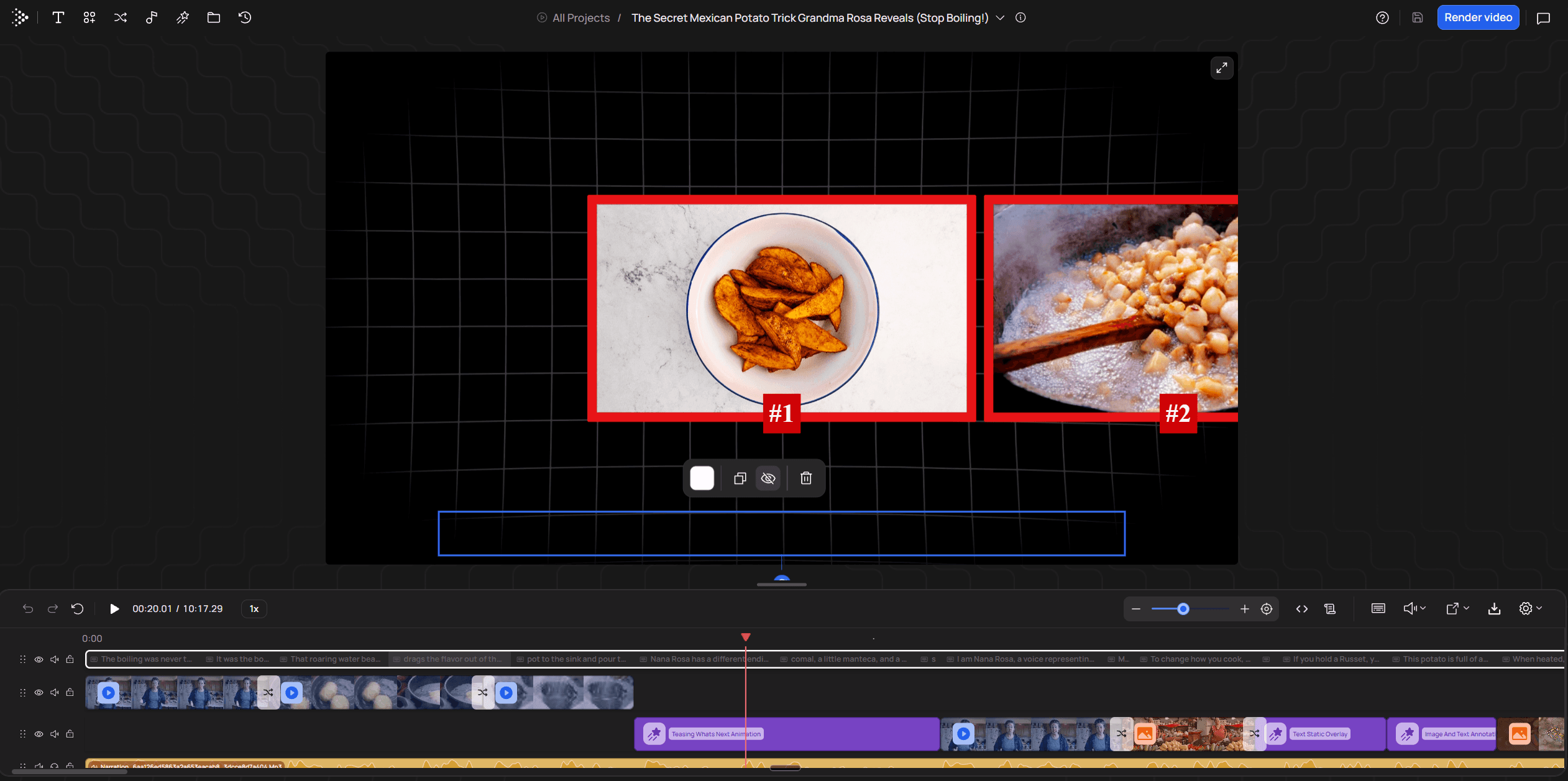
Against doing it by hand or hiring help, three things change. You see the cost before you commit. The B-roll is licensed Storyblocks stock and archival footage rather than generated filler. And there is no editor to brief and then wait days for.
Talking-head and faceless channels check different things in the same pipeline. On a recording, you are mostly checking cut points and B-roll timing, which AI talking-head editing in depth covers step by step. Starting from a script or voiceover, you are mostly checking whether the footage matches the narration, and that is the main test in AI editors for faceless channels.
In short:
- Upload one recording, script or voiceover, pick a length band, and read the Quote Statement before any credits are spent.
- The render runs in the cloud and finishes within an hour in most cases, up to five at peak.
- B-roll is licensed Storyblocks stock and archival footage, not AI-generated filler.
- Check every B-roll placement and caption break in the browser editor before you publish — the AI gets you to 90%, not 100%.
What can AI video editing tools do automatically?
AI video editing tools can cut filler words and silences, add captions, clean audio, edit by transcript, swap backgrounds with a prompt and pick B-roll. They take the slow mechanical passes off your hands. A person still decides which pause is a beat and which is dead air, and frame-level timeline work stays in an editor like Premiere Pro. Most tools do one of these passes and leave the assembly to you. VidRush does several in one go for long-form, cutting dead air and filler, picking B-roll, adding captions and assembling the edit for you to check in the browser editor.
Text-based editing transcribes the recording, so deleting a word cuts that moment from the video.
Filler and silence removal cuts the ums and gaps it detects.
Captions come from the transcript, and audio cleanup takes noise out of speech.
B-roll picking matches footage to what is said, and VidRush does this across a whole talking-head recording.
Prompt edits in Runway change backgrounds or objects in real footage, one short shot at a time.

What matters is how much of that you end up fixing. I expected the complaints to blame hard footage like two speakers, a room mic or music under speech, but 22 of the 30 threads we coded said nothing about the recording at all. Fixing the cuts by hand was the most common outcome, in 11 of the 30. Posters blamed a bug or an update in the tool in 14 threads, and the footage in only 6.
These were complaints people chose to post, so they show what goes wrong, not how often. The causes are what each thread claimed. Descript and CapCut dominate, and none involved non-English speech or a recording over an hour.
In one Descript thread, filler removal got worse after an engine change and 'still kept, like, the first 1/10th of a second of every uh'. In a Resolve thread, silence removal clipped the first syllable of almost every phrase in a 50-minute interview.
That surprised me. In edit bays, a bad cut usually traced back to the recording. Here the threads mostly blamed the software. Treat any filler remover as a fast first pass, and budget time to check every cut.
In short:
AI handles transcript edits, filler and silence cuts, captions, audio cleanup and B-roll picking.
It does not replace the person deciding what stays in.
Most of the 30 complaint threads blamed the tool, not the footage, so check every cut.
How much does AI video editing software cost, and is free any good?
Free AI video editing software you can publish with exists, but only CapCut Free and DaVinci Resolve Free qualify. The other free plans add watermarks, cap you at 720p or give you a small minute pool, which makes them demos. VidRush has no free plan at all.
Tool | Free plan | Can you publish with it? |
|---|---|---|
VidRush | None (paid plans only, from $99/mo) | No free plan; paid output is a finished 1080p MP4 |
Descript | 60 min/mo, 720p, watermark | Demo |
Opus Clip | 60 credits, watermark, 3-day storage | Demo |
Runway | 125 credits once, watermark | Demo |
Riverside | 2 lifetime hours, 720p, watermark | Demo |
InVideo AI | Watermarked, non-commercial | Demo |
CapCut | Unmetered up to 4K, no watermark without Pro assets | Yes, but auto-captions are Pro |
DaVinci Resolve | Unmetered 4K, no watermark | Yes, but no AI tools |
Free plans, checked November 2026.
Neither free option does the AI part for free. For long-form I'd publish with Resolve Free, because nothing in it can slip a watermarked Pro asset onto your timeline. CapCut Free is fine for quick social edits if you watch the Pro badges.
Paid plans are where volume bites. We analysed 29,088 small-to-mid sized faceless and niche channels. The median publishes about 61.6 minutes of video a month, and 50.7% publish more than 60. The minutes are estimates from upload frequency and video length, and the set had no Shorts-only channels.

Ignore the headline price on any entry plan and count the minutes it covers. VidRush Starter covers roughly 45 finished minutes, about four 10-minute videos, so the median channel above would need Creator or top-ups. InVideo AI Starter covers about one draft, and Runway Standard buys under a minute of generated video. Work out your own monthly minutes, then match them against current VidRush plans before you upload.
What one VidRush video costs
Plan | Monthly price | Finished 10-min video | Finished 30-min video |
|---|---|---|---|
Starter | $99 | $21.80 | $65.40 |
Creator | $239 | $17.50 | $52.50 |
Pro | $639 | $15.60 | $46.80 |
Credit cost per finished video at 44 credits a finished minute, monthly billing, checked November 2026.
Compare at your own volume, because the per-video figure in that table assumes you spend the whole month's credit. Upwork's rate guide puts a freelance edit of a standard 8 to 15 minute YouTube video at $100 to $300. If you publish one 10-minute video a month, Starter still costs $99, so it lands at the bottom of that freelance range; at four a month it works out to about $25 a video. Unused credits are the catch, so check on the pricing page whether they carry over before you weigh it against hiring a YouTube video editing service.
I would rather pick the higher tier knowingly than hit a cap halfway through a video. Price the tier your monthly minutes need and ignore the one on the banner.
In short:
Only CapCut Free and DaVinci Resolve Free are publishable free options, and neither does the AI part free.
Price the tier your monthly minutes need, since half the channels we analysed publish over 60 minutes a month.
A finished 10-minute VidRush video costs $21.80 on Starter, against $100 to $300 for a freelance edit.
Which AI video editor fits your videos: YouTube, podcasts, shorts or PC?
Match the tool to the video first and the computer second:
For an AI video editor for YouTube long-form, use VidRush in the browser, or Resolve Studio installed locally if you'd rather cut it yourself with the AI running on your own hardware.
For a two-person podcast, record remote guests on separate tracks in Riverside, then cut the dialogue as text in Descript.
For shorts from videos you already have, start with Opus Clip, because it finds the clips and CapCut leaves the hunting and trimming to you.
For a Windows download, CapCut, Premiere Pro and Resolve Studio install locally, while VidRush, Opus Clip, Runway and Riverside need only a browser.
Check language next, because '25+ languages' usually describes transcription, not the AI editing. Descript's filler detection works on English transcripts only, and Opus Clip marks 20 languages as beta while leaving out right-to-left languages such as Arabic. VidRush scripts and narrates in English, German and Spanish, with English the most fluent, and its talking-head edits are English only. If your channel isn't in English, run the AI step itself on a clip in your language before you pay for a month.
Test before you pay for a second month
Record 3 to 5 minutes with false starts, fast fillers, a long pause and any music you use.
Run the tool at its default settings.
Zoom into the cut points and listen for clipped first and last syllables.
Export once to check resolution, watermark and which tier your export needs.
Rerun the same clip after the tool's next update, before paying beyond one month.
VidRush has no trial, so watch full videos on customer channels first, then upload a real recording and read the Quote Statement before anything is spent. Buy one month of Starter, not a year. The 14-day cancellation right only applies while no credits have been used. Before your first upload, read what YouTube says about AI-edited content so you know where you stand.
In short:
Pick by video type first: VidRush for long-form YouTube, Opus Clip for shorts, Riverside and Descript for podcasts.
CapCut, Premiere Pro and Resolve install on a Windows PC, while VidRush, Opus Clip, Runway and Riverside run in the browser.
Test any tool on your own messy footage before paying for a second month.
Frequently asked questions
Is AI-edited video allowed on monetized YouTube channels?
That is a platform policy question, and the rules change often, so we keep the answer on one page that stays current: YouTube policy on AI content. Read it before you build a channel around any tool.
Does AI video editing software work in languages other than English?
Partly. Transcription usually covers many languages, but the automatic cleanup often stops at English. VidRush works in English, German and Spanish from prompts, scripts and voiceovers. English is the most mature, German and Spanish narration is less fluent, and talking-head uploads must be English.
Can I edit an AI-made video further in CapCut or Premiere Pro?
Yes, though VidRush exports one flattened MP4 with no XML, so any work in CapCut or Premiere happens on a single clip. Most fixes never need to leave VidRush. Its browser editor is a full timeline where you swap and retime clips, fix captions, add text overlays and replace audio, and a re-render costs about 10% of the original credits. If you specifically need an XML timeline in Premiere, Descript's Creator plan and Opus Clip's Pro plan export one.
Can AI edit a whole YouTube video for me?
For one kind of video, close to it: a single-speaker English recording, a script or a voiceover can come back from VidRush as a finished long-form edit. You still check the B-roll and captions before you publish.